

Free
Free no card needed
- 20 spools, 2 printers, 4 storage locations
- Bambu Cloud import and SpoolTag included
- Print logging and Print Story
- 30 days of analytics
- Categories and printer maintenance
- iCloud sync across devices

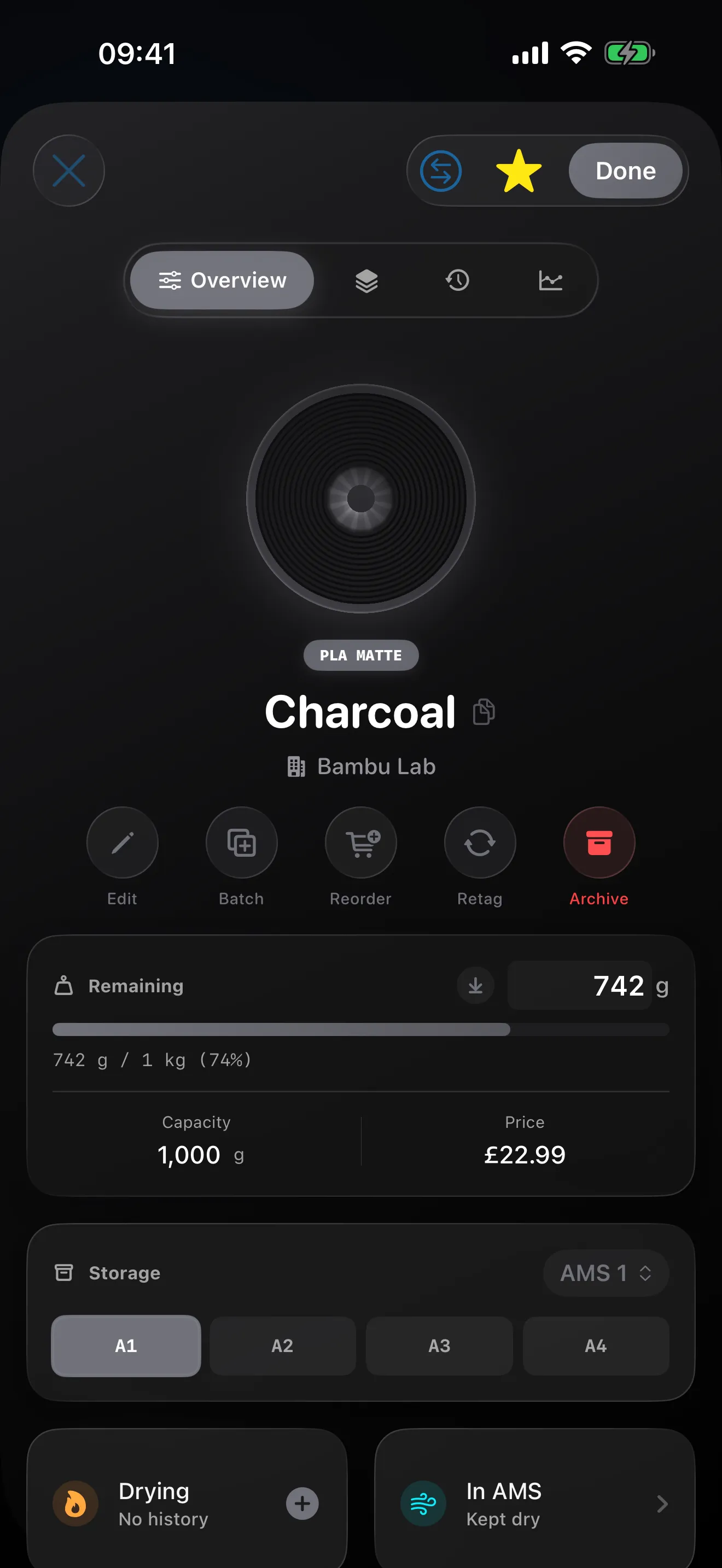
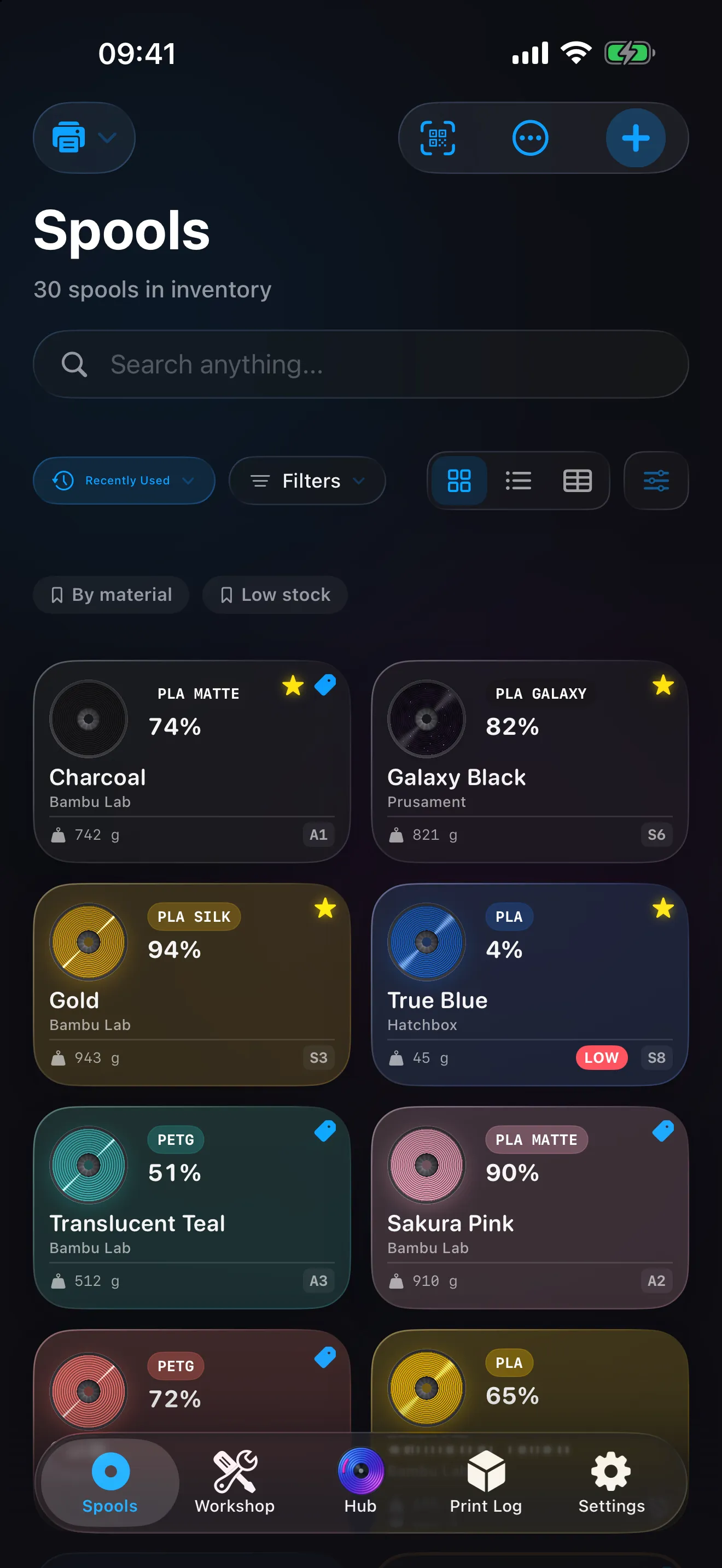
Filament tracker for iPhone, iPad and Mac
Filament inventory for 3D printing. Remaining weight in grams, cost per print, printer maintenance and NFC spool tags. No account: your data lives in your own iCloud.
Free to start · Built for iOS 26 · Bambu Cloud import included

Free to start
20 spools, 2 printers, 4 storage locations
No account
iCloud keeps your devices in sync
Bambu Cloud import
Included free. Finished prints arrive ready to log
Built for iOS 26
Liquid Glass, Home and Lock Screen widgets
Inventory
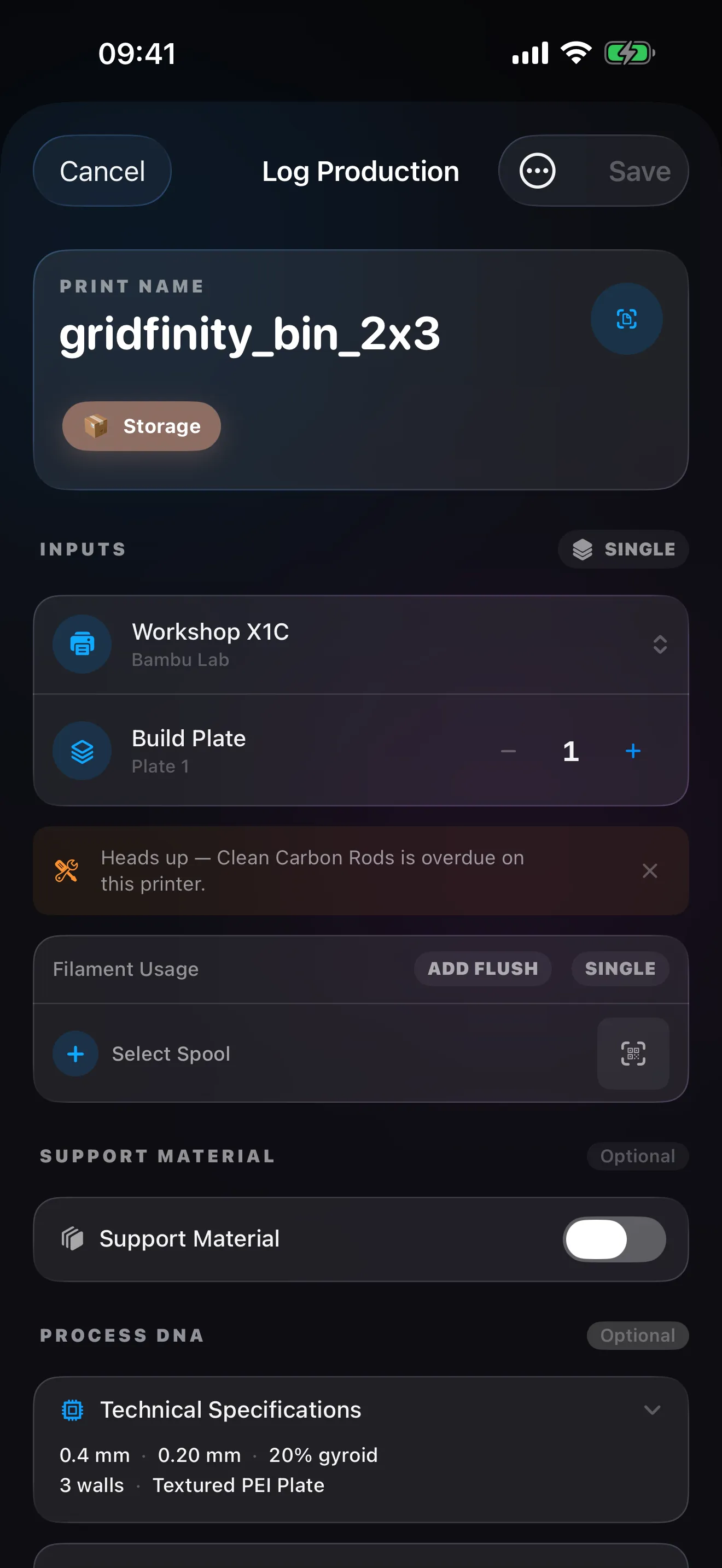
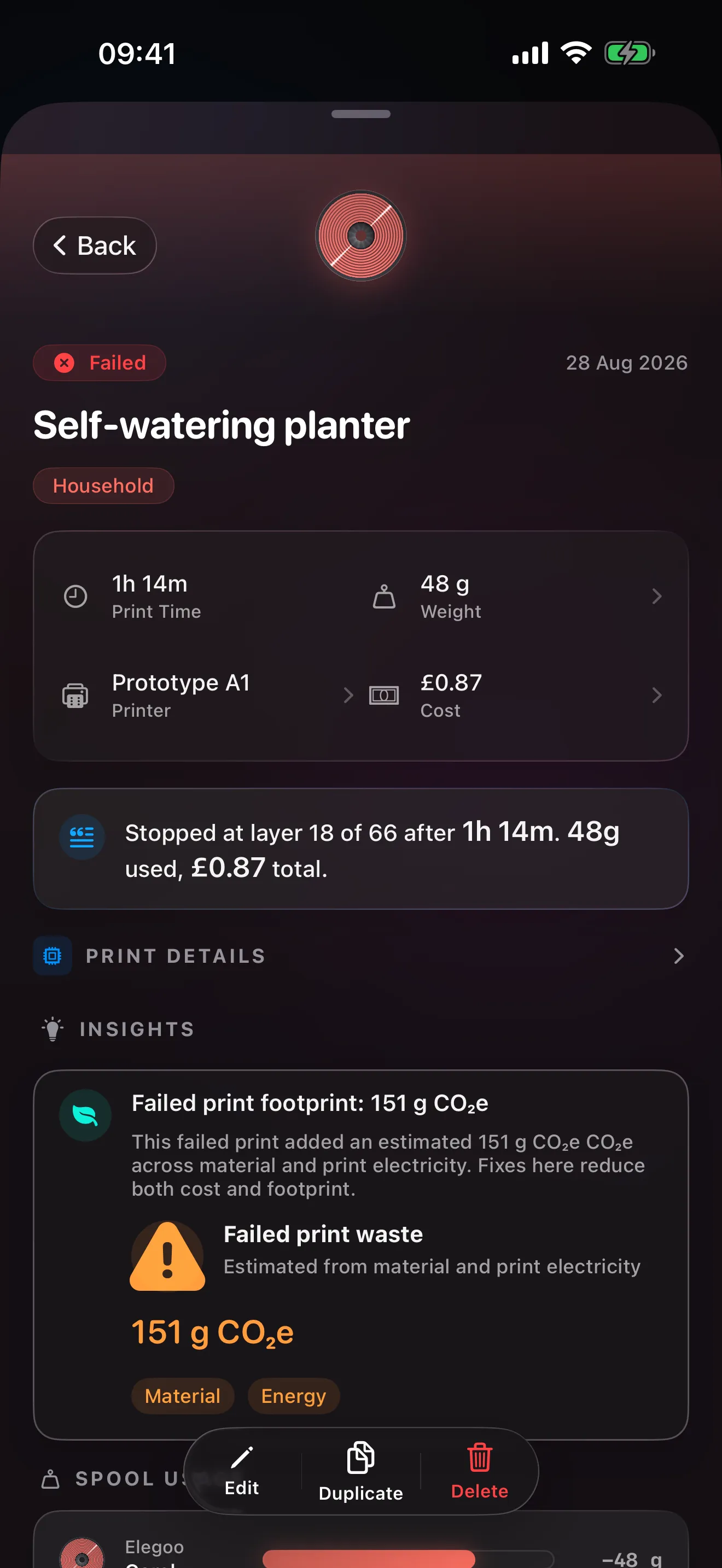
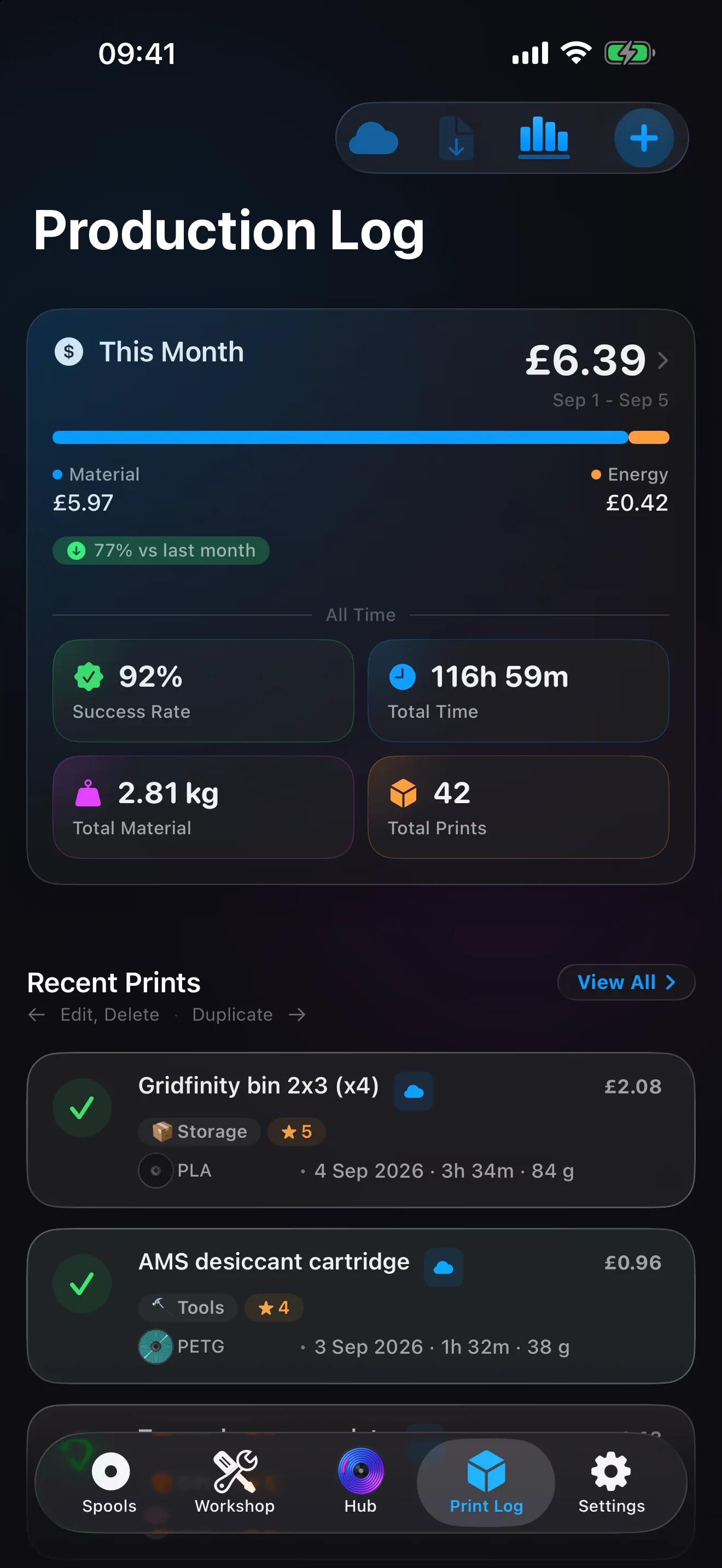
Print log
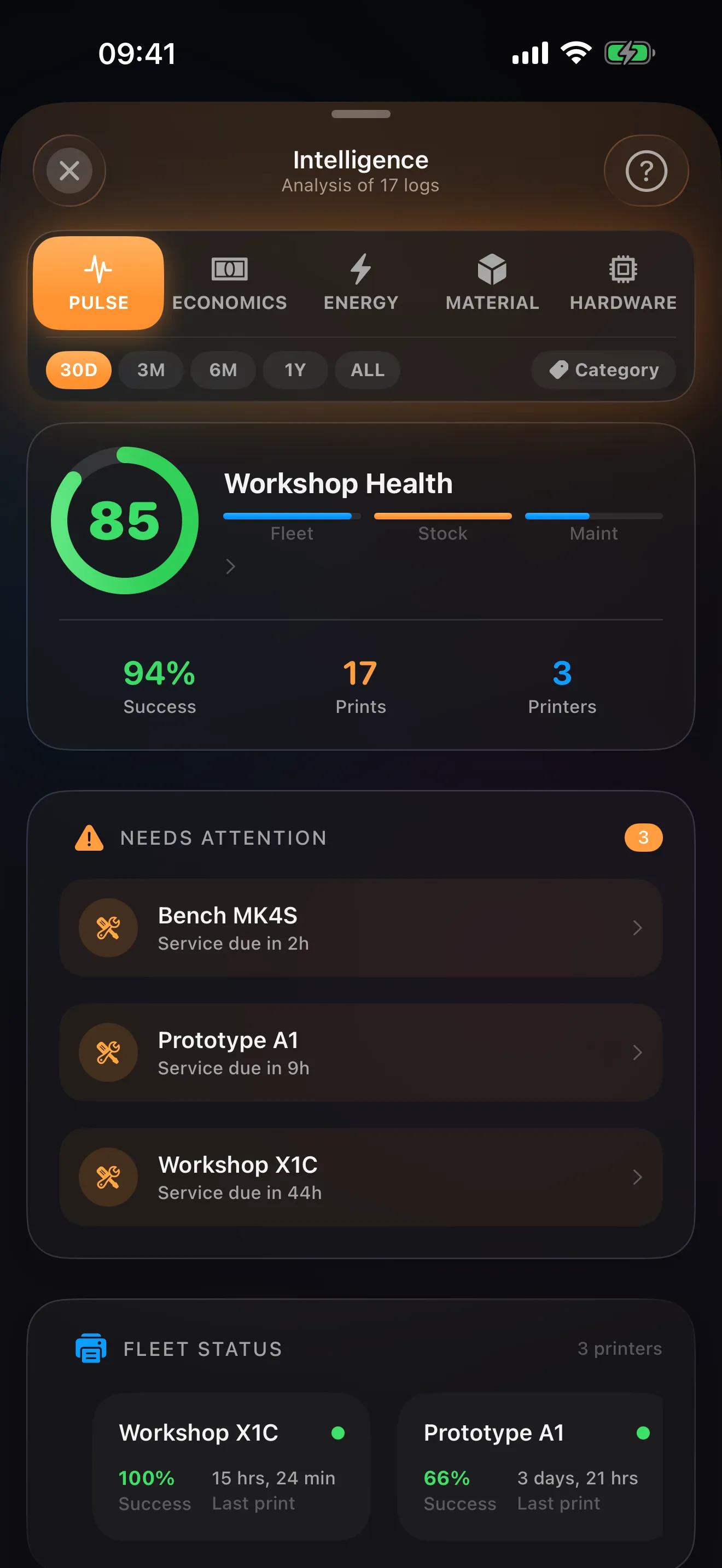
Intelligence
Pulse, Economics, Energy, Material and Hardware read your print history and turn it into numbers you can act on.
Success rate, prints and printers for the period, and the printers that need attention next.
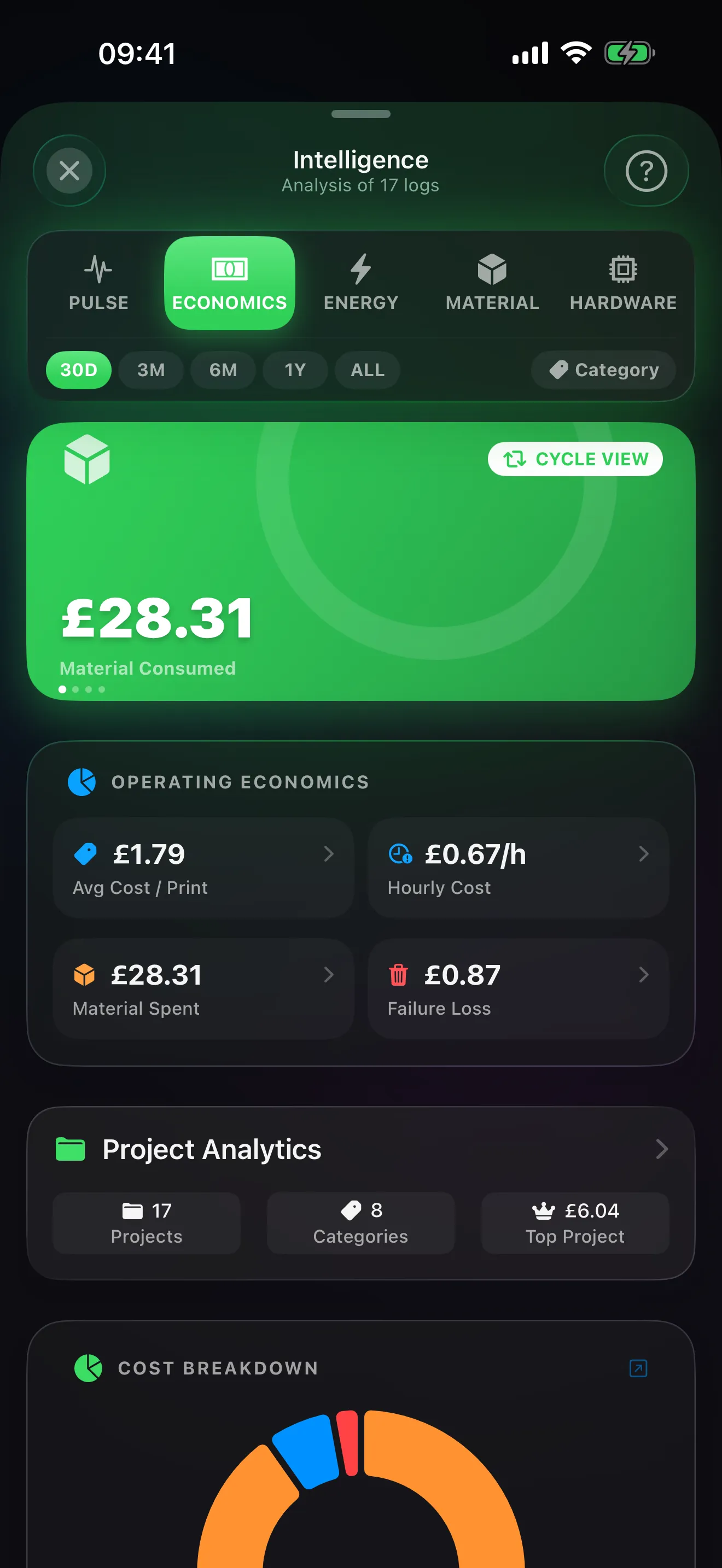
Material, electricity and failed attempts, per print, per hour and per project.
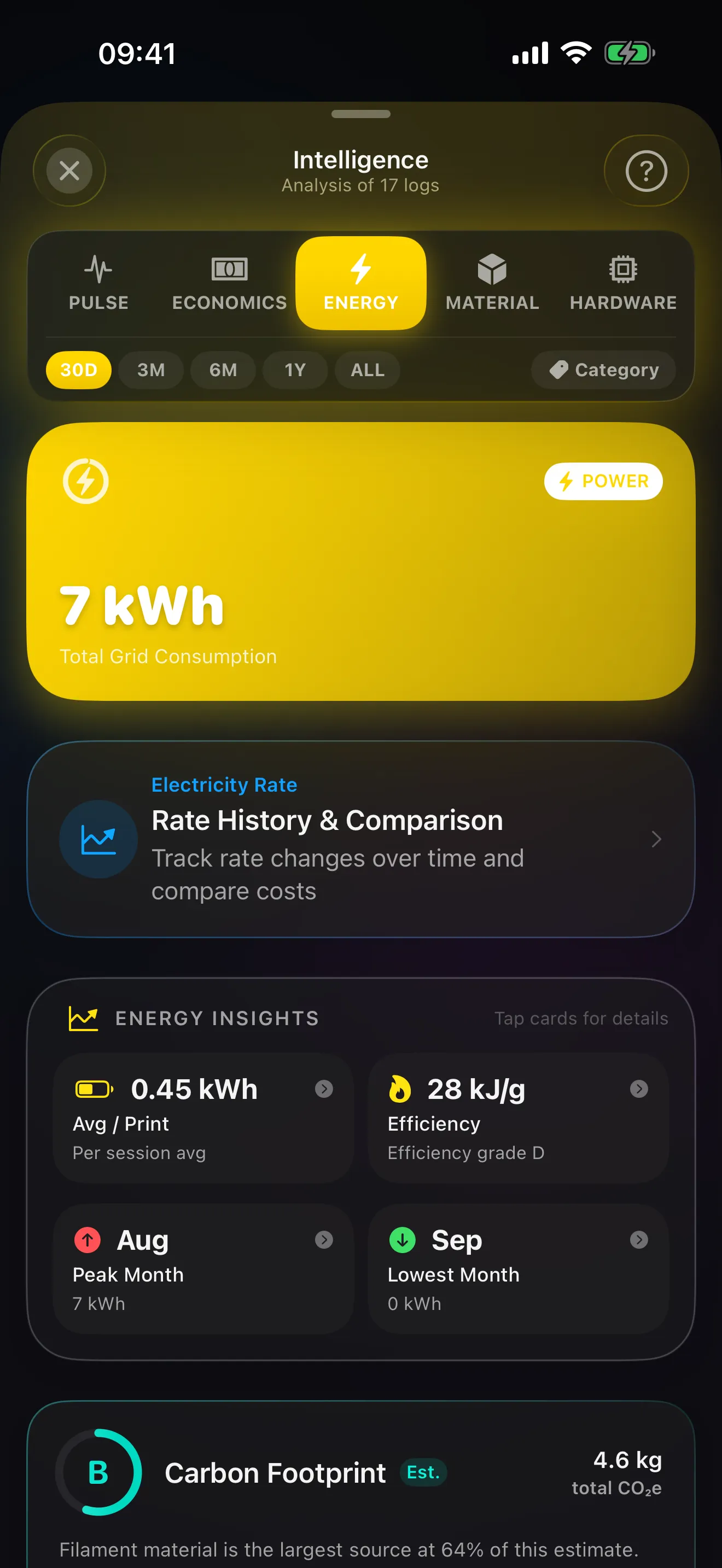
Kilowatt hours from your printer's power profile and your tariff, with time-of-use windows and a carbon estimate.
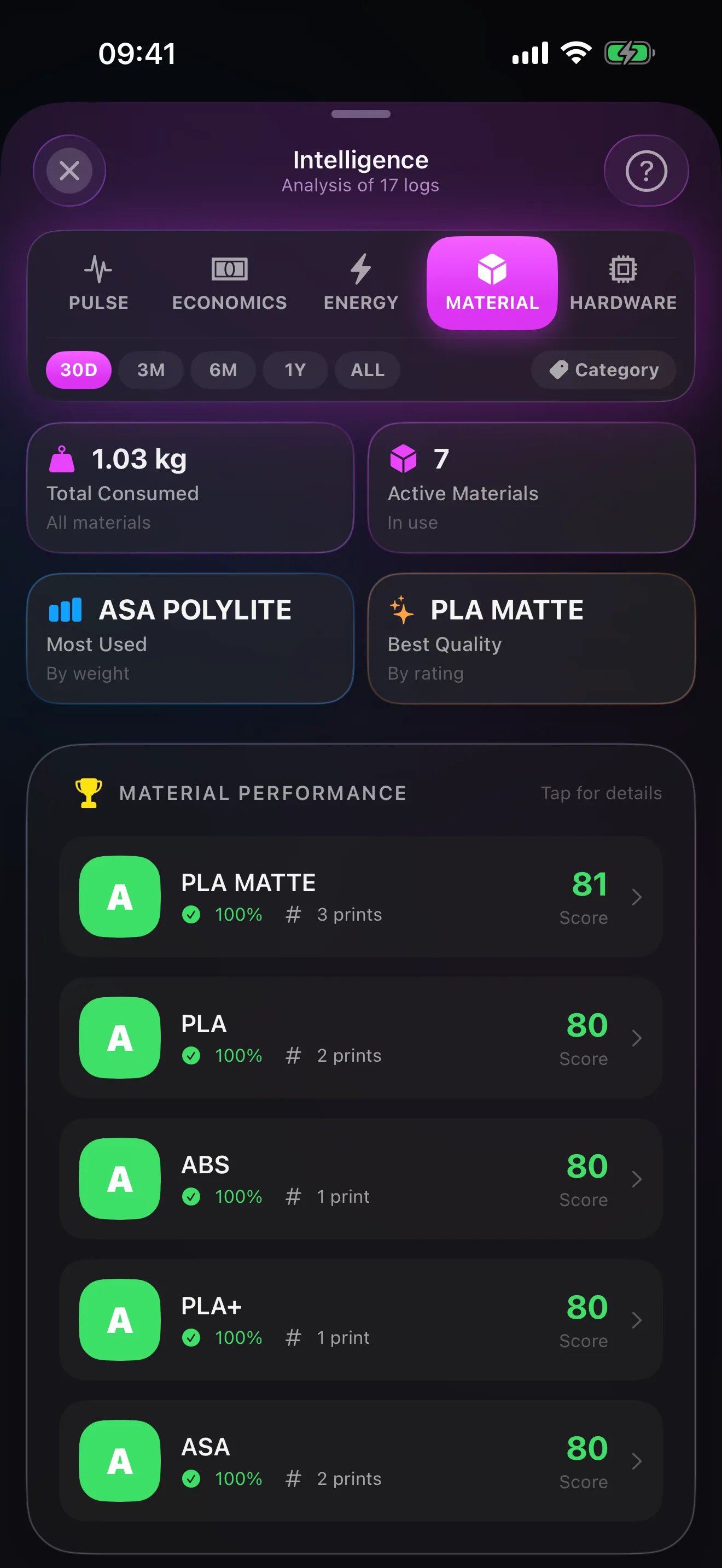
Usage by weight, the most used and best rated materials, and grades built from success rate, usage and cost.
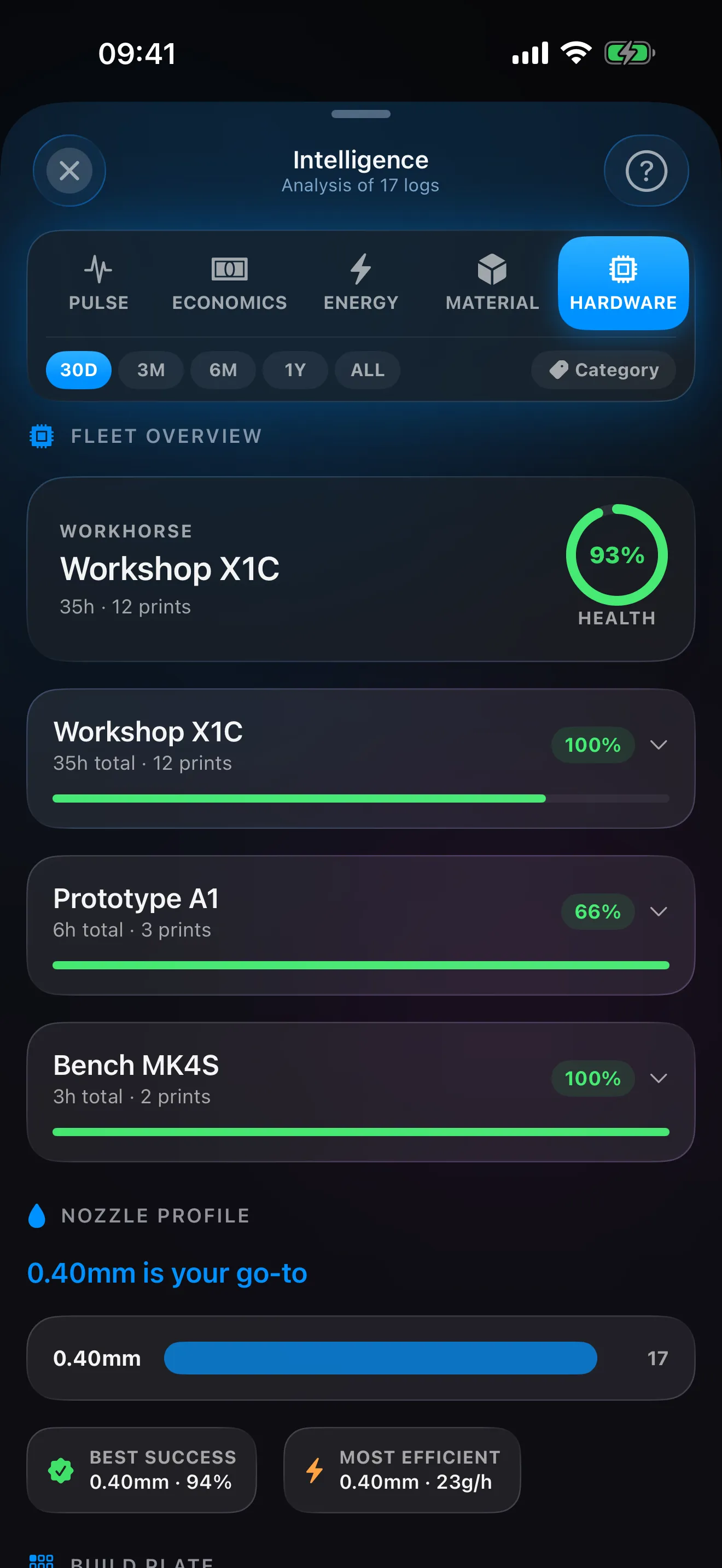
Hours and prints per printer, health, and which nozzle is your go-to.
Workshop
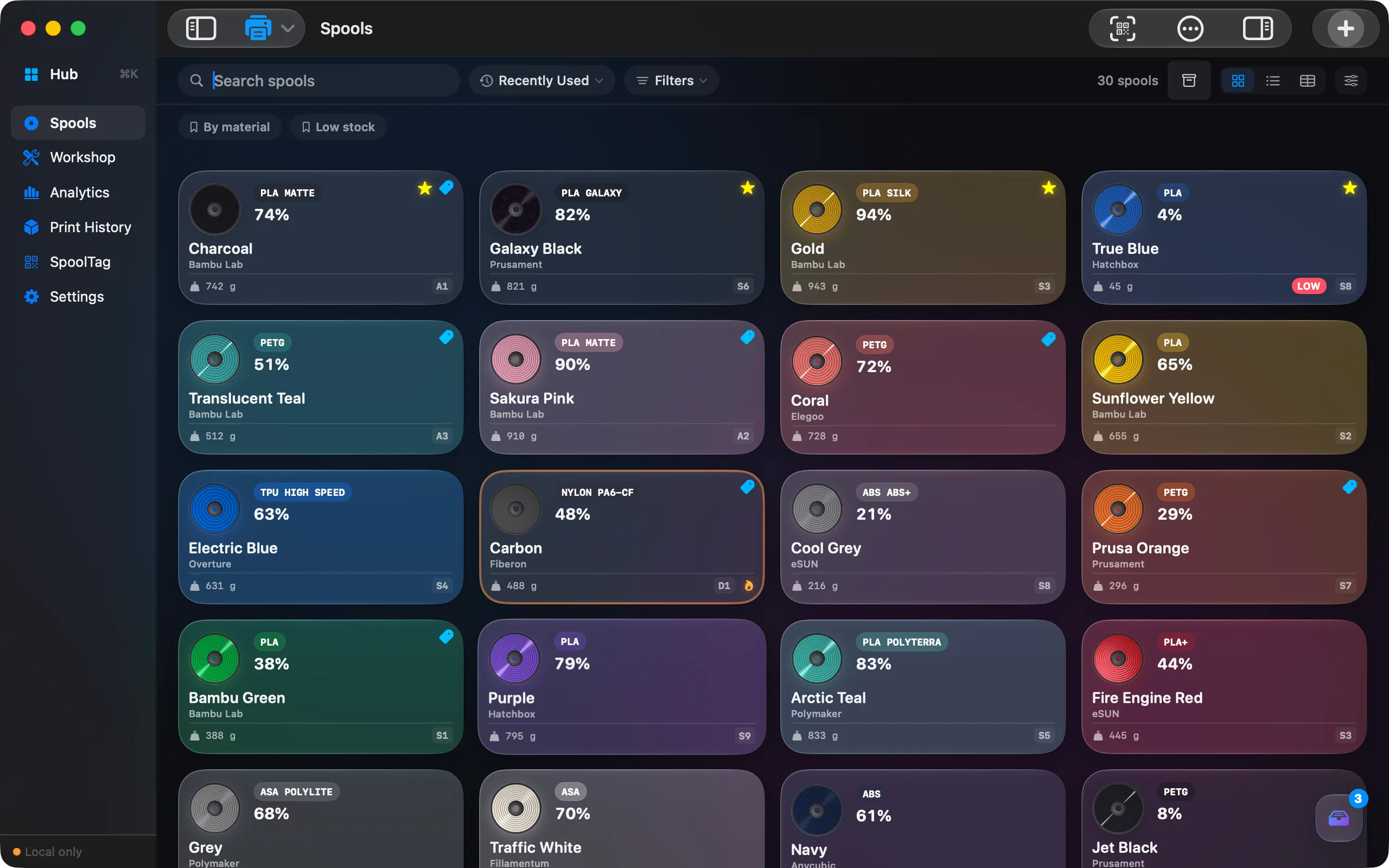
Spool for Mac
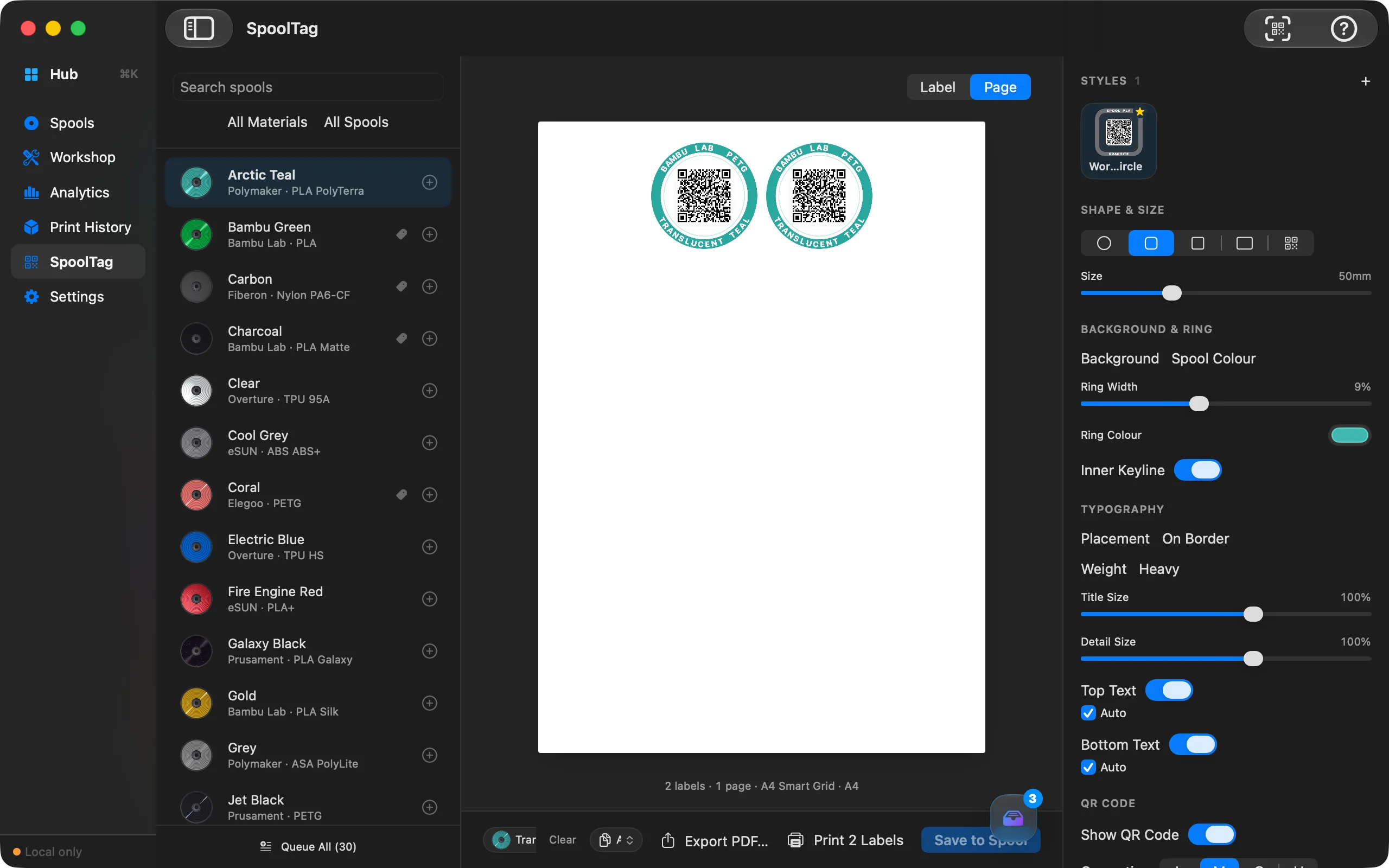
A real Mac app, not an iPad app in a window: sidebar and detail, a proper menu bar, keyboard shortcuts, and ⌘K to open the Hub from anywhere. Your spools, printers, prints and labels on a screen with room for them. Same iCloud data as your iPhone, and one Pro covers every device on your Apple ID.


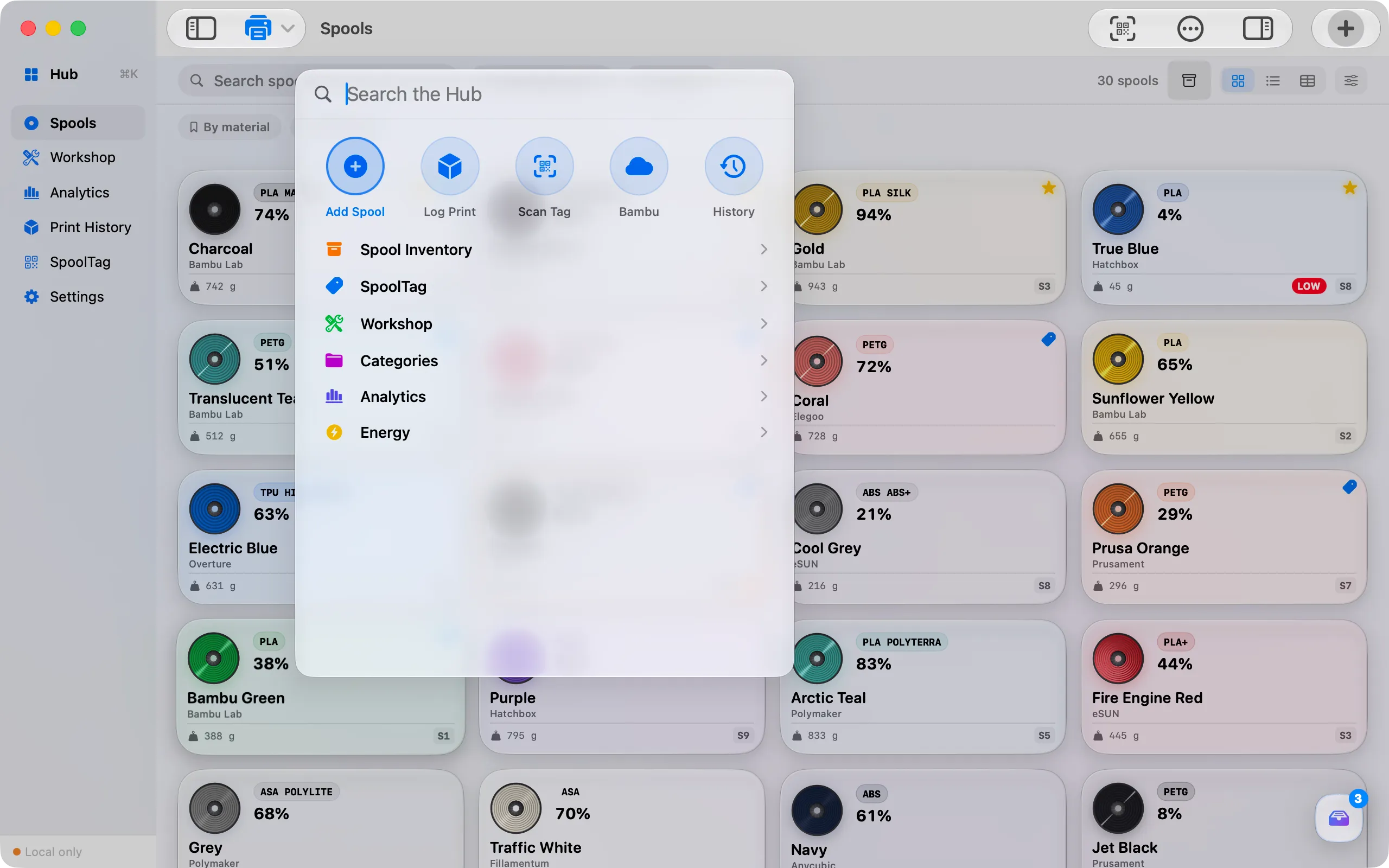
Add a spool, log a print, scan a tag or jump to a section of the app from a command palette.
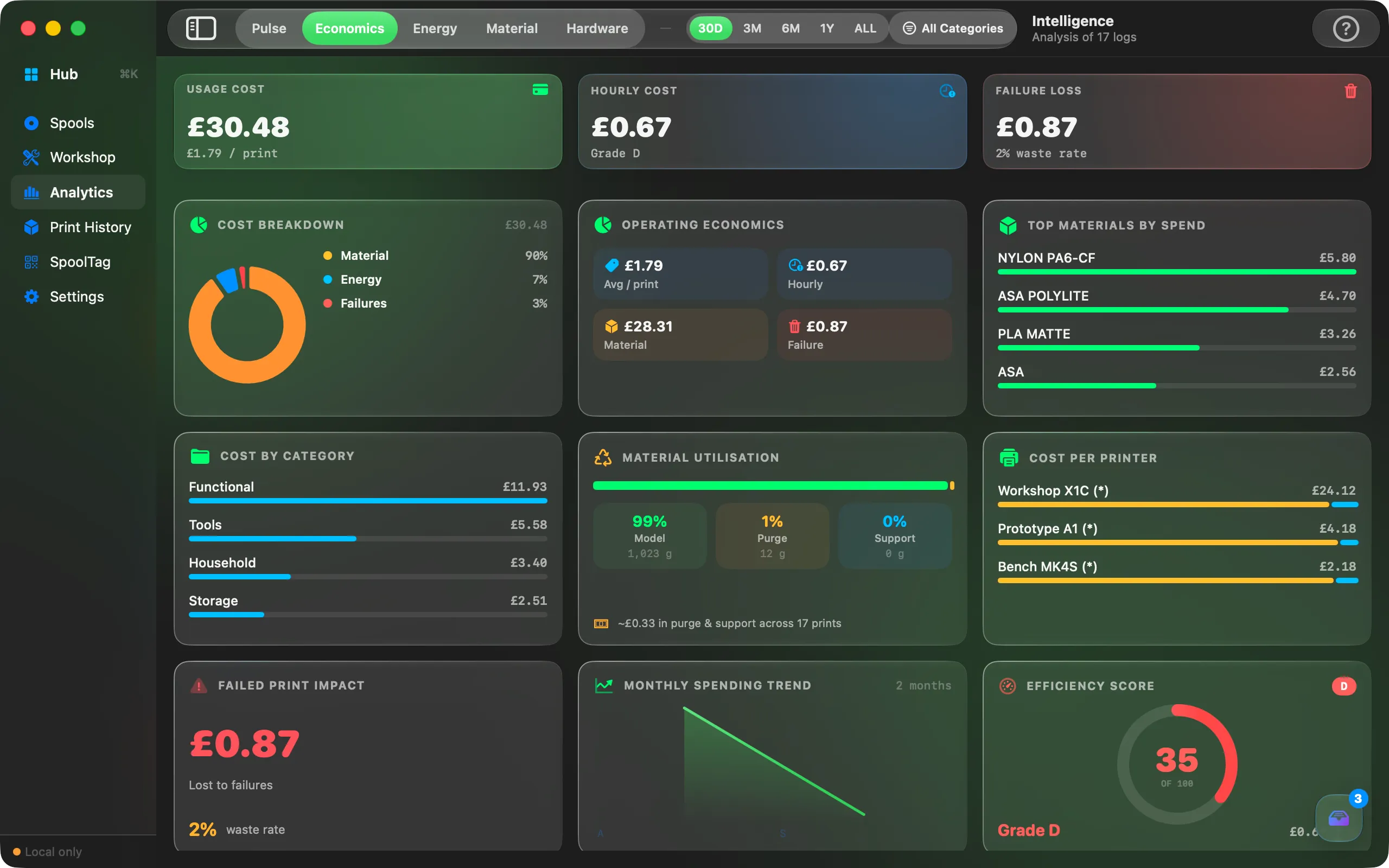
Economics shows its cost breakdown, spend by category and by printer, and the monthly trend at once.
SpoolTag
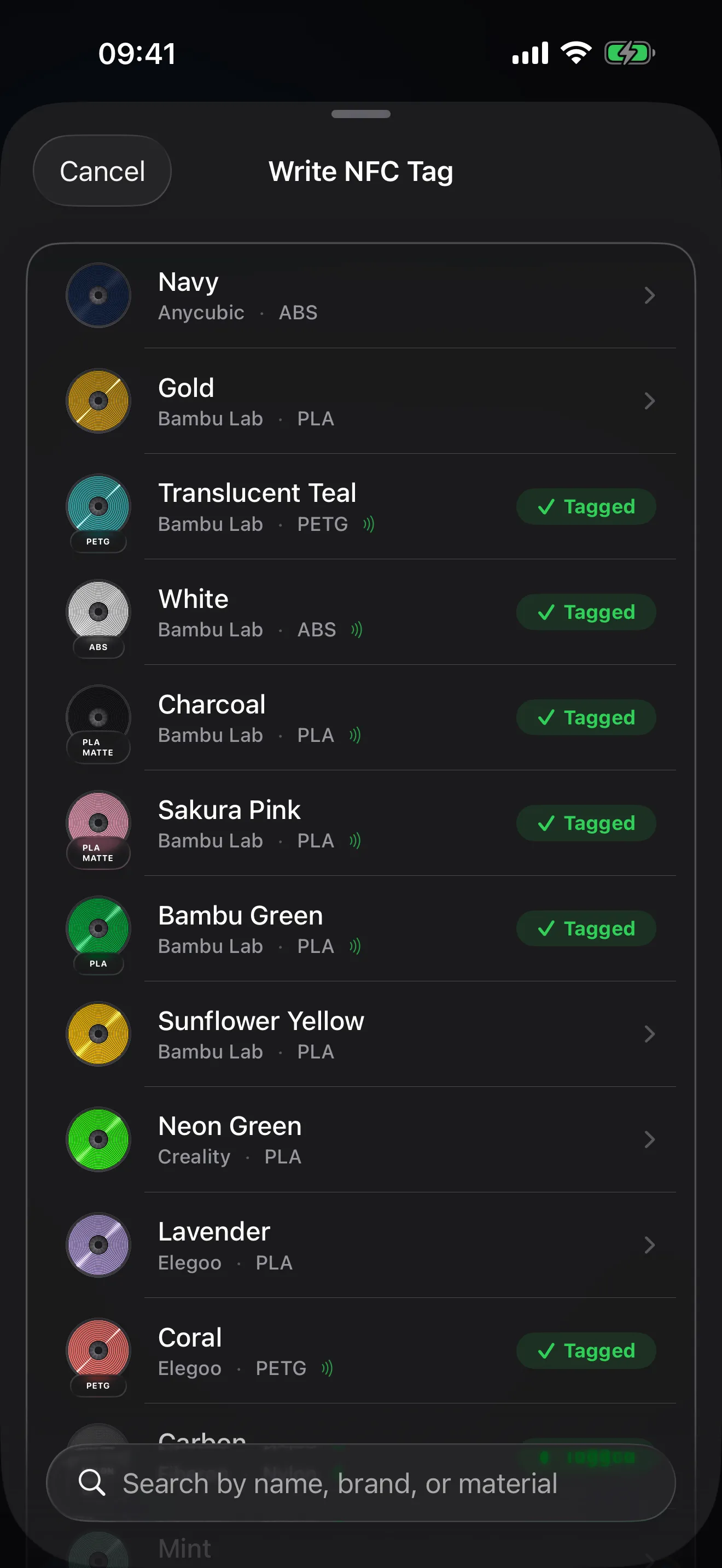
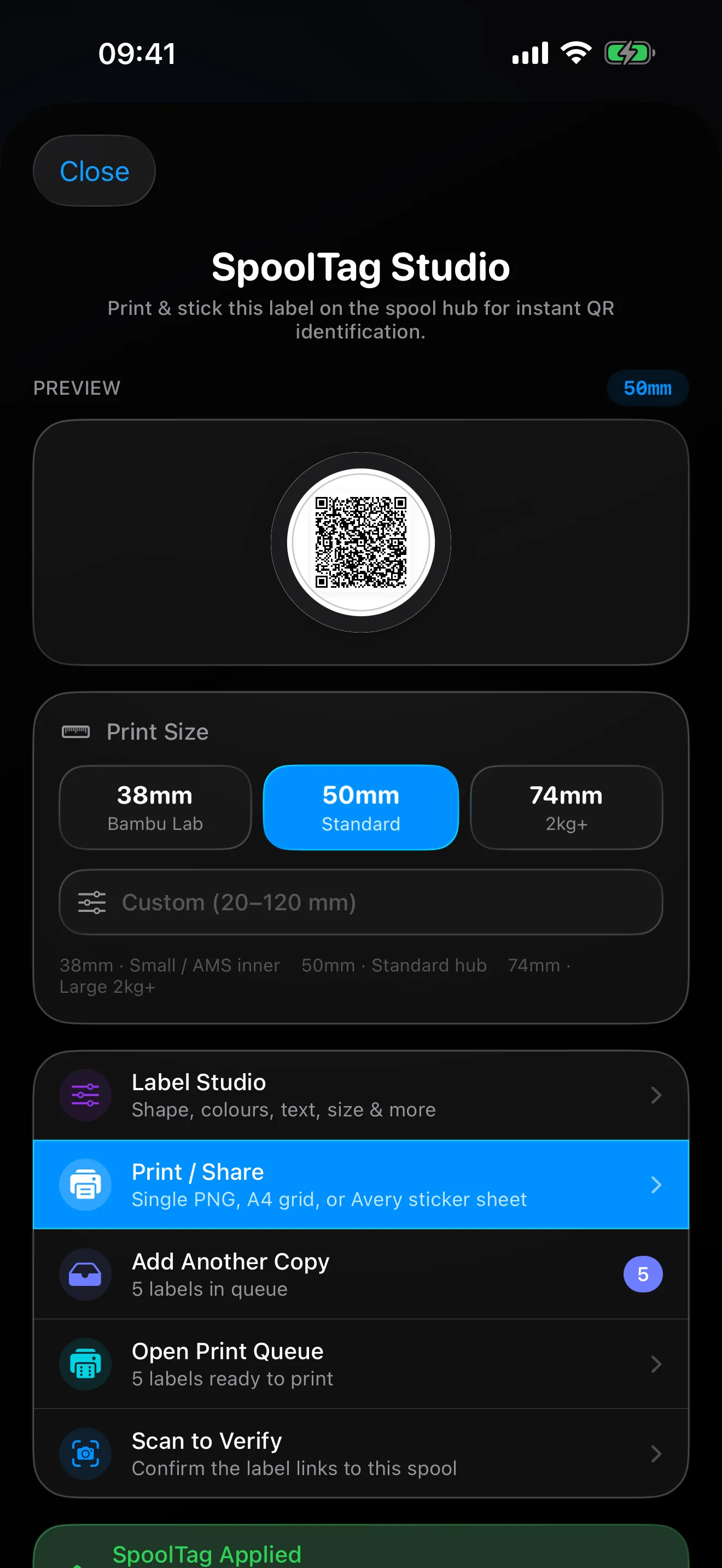
Stick an NFC sticker on a spool and write it from Spool, or print a QR label, and scanning it opens that exact record: remaining weight, where it lives, its last print. Spool writes its own tags and labels, and reads and writes filament tags in more than one format.
Features
Real captures of the app, one line each. Open any of them for the full entry.
Adding spools, arranging the shelf, and what happens when a roll runs out.
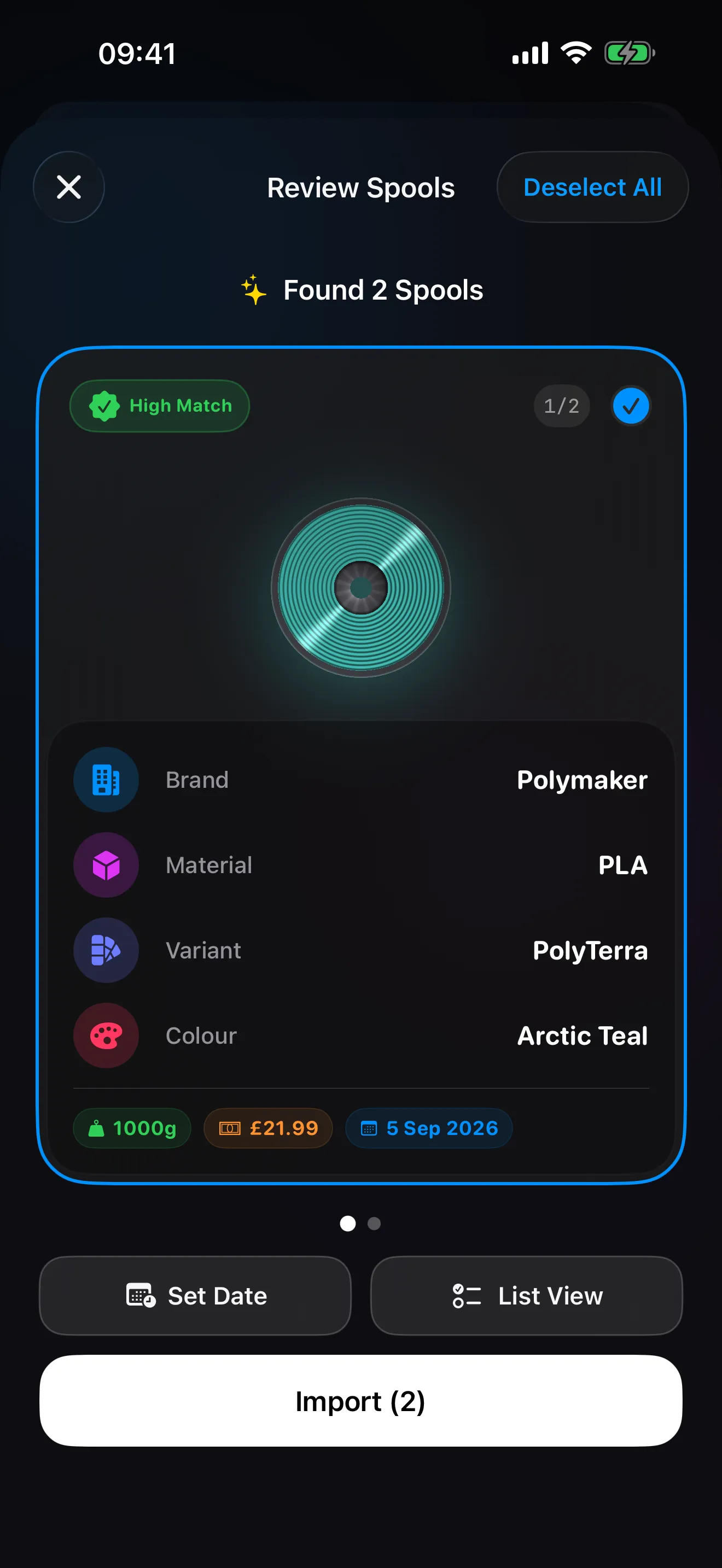
Point the camera at a filament label, or share an order screenshot on iPhone, and Spool matches what it reads against the built-in filament database, with a confidence badge on each result.
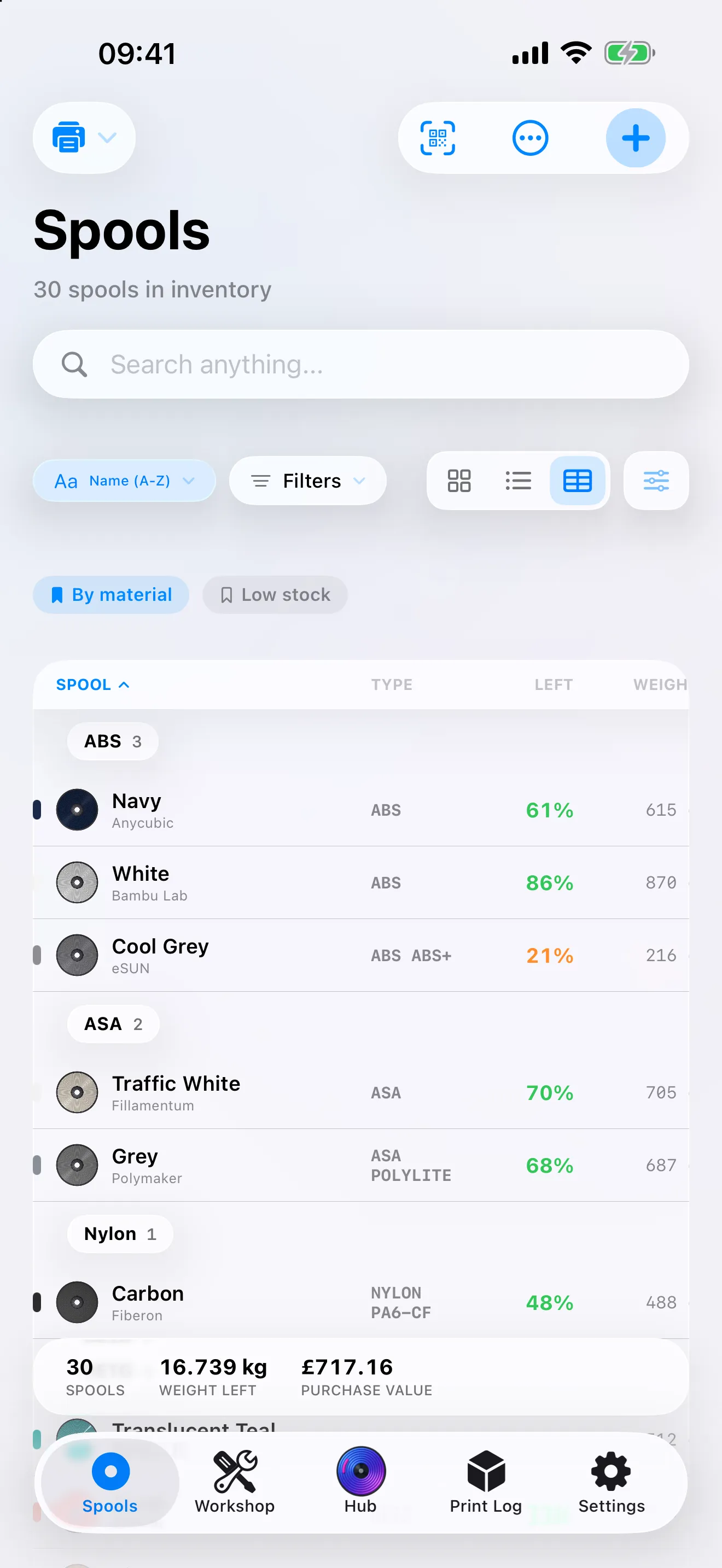
Read moreGrid, list or spreadsheet, grouped by material, brand or location, and any arrangement saved under a name.
Read more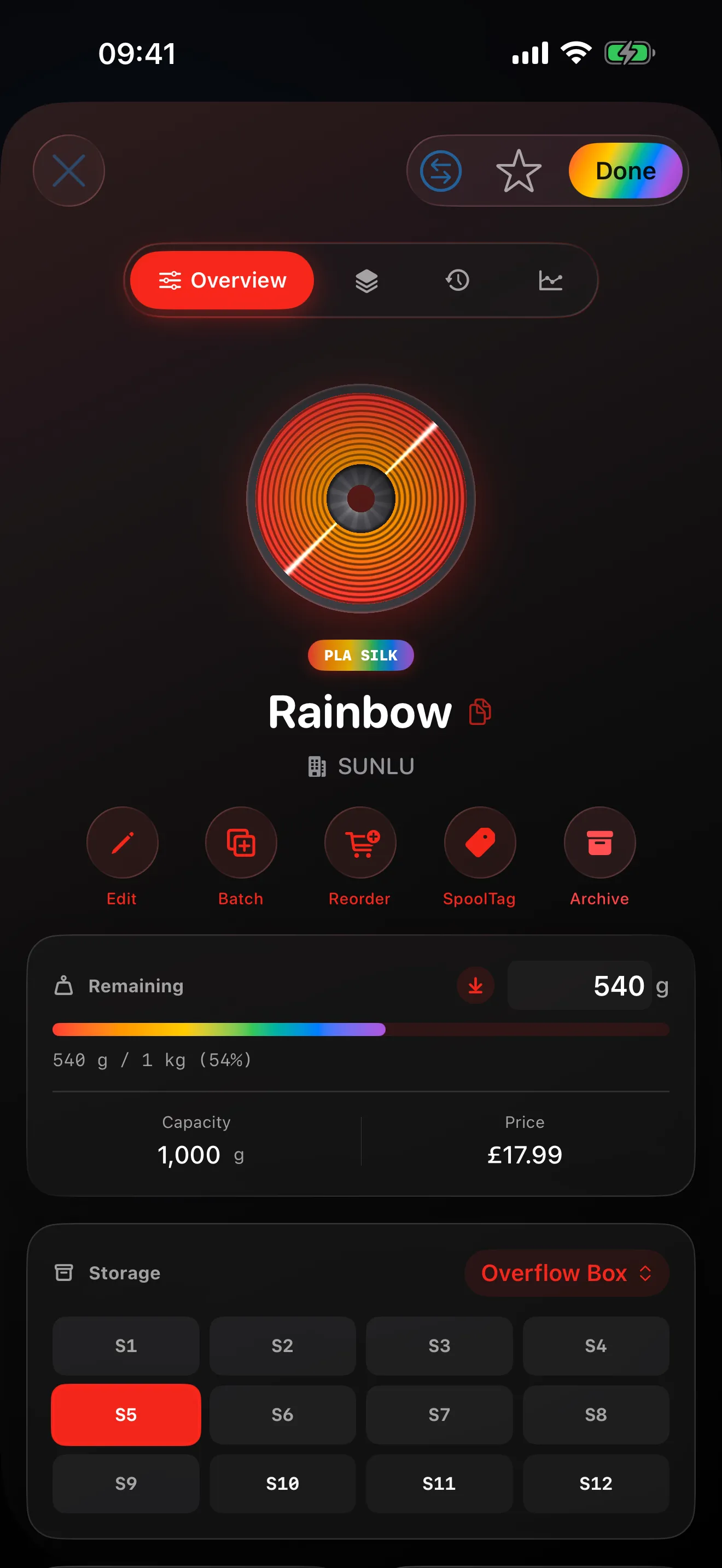
A multicolour spool keeps every swatch: the material pill and the remaining bar carry the whole run, and the balloon is tinted from the same set.
Read more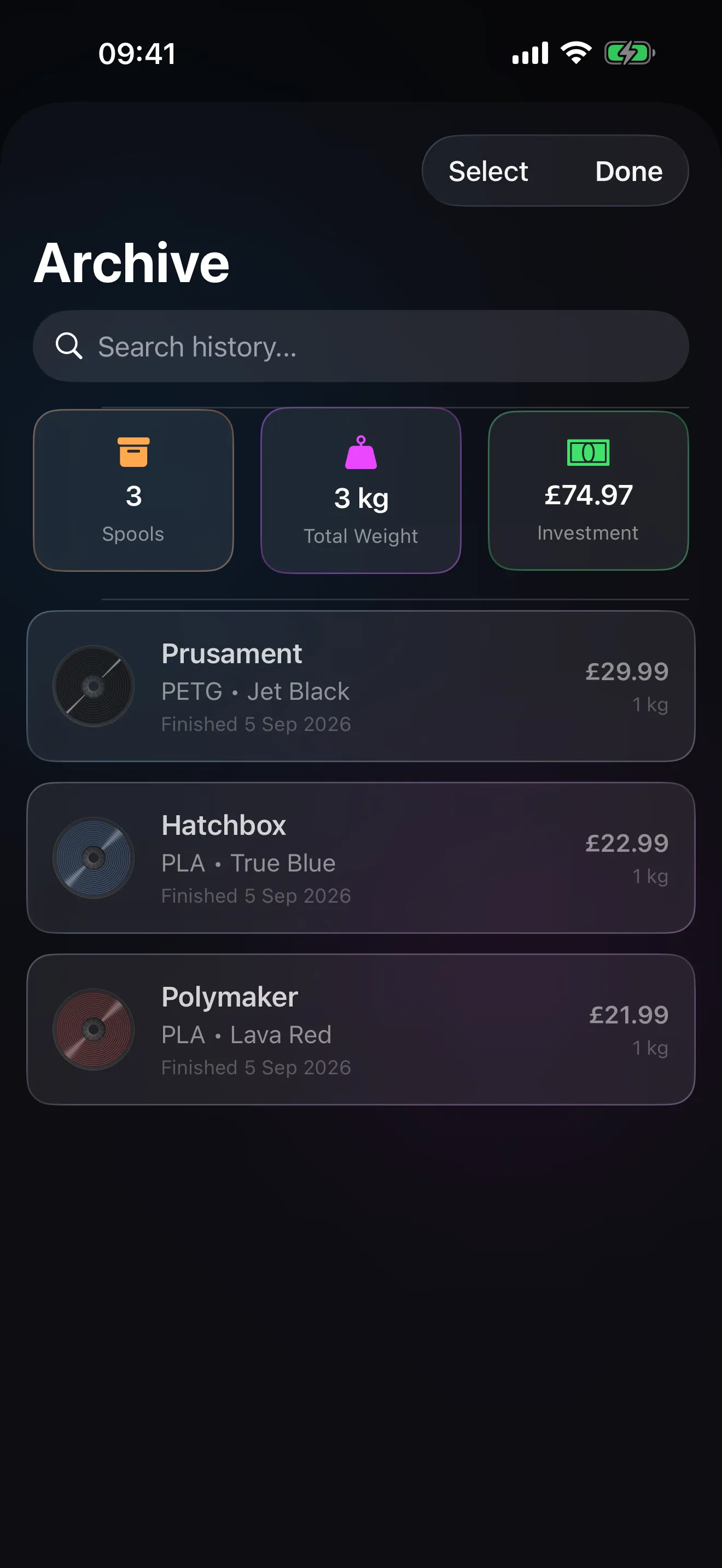
A spool that runs out archives itself; its history and costs stay in your analytics, and it can be recovered.
Read more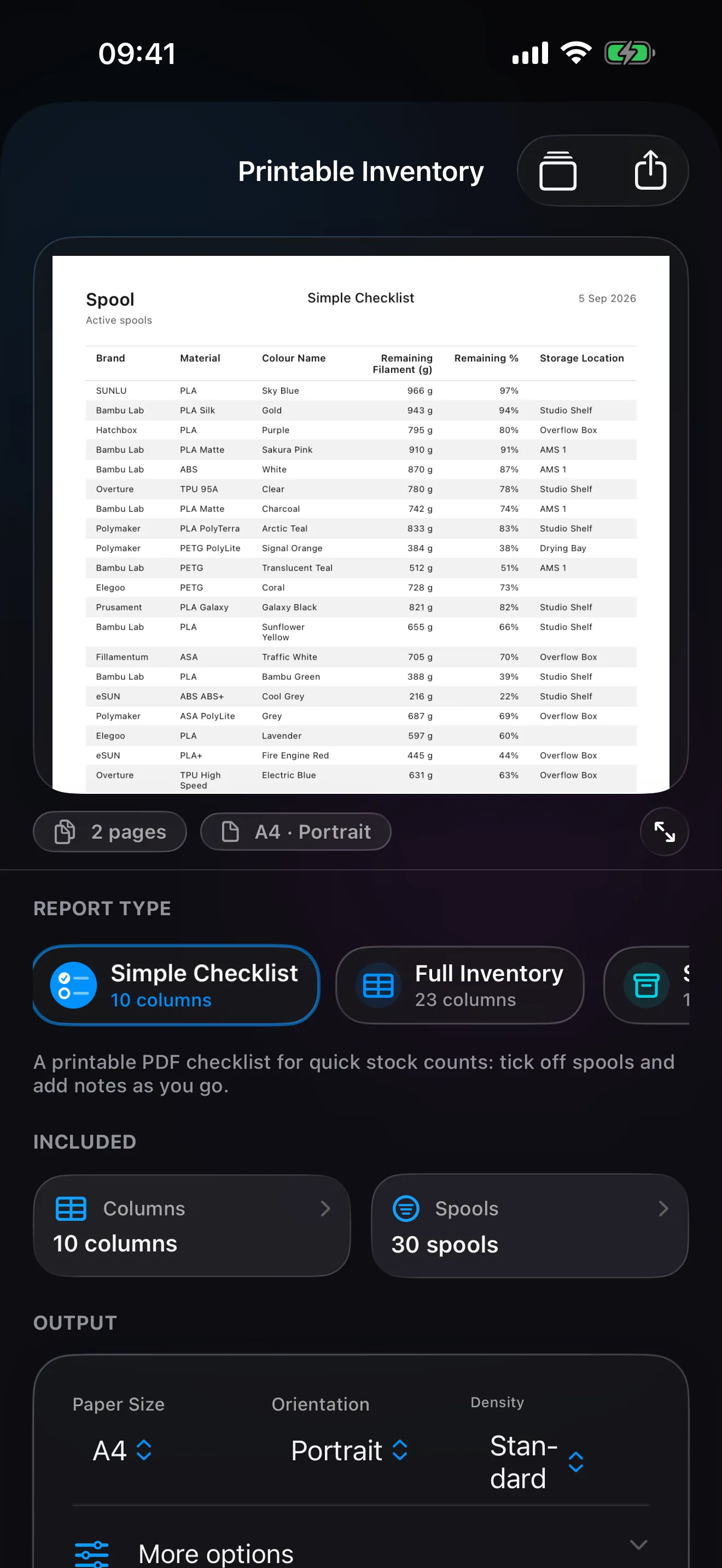
Turn the shelf into a PDF: choose a preset, the columns and the spools, then print or share it.
Read more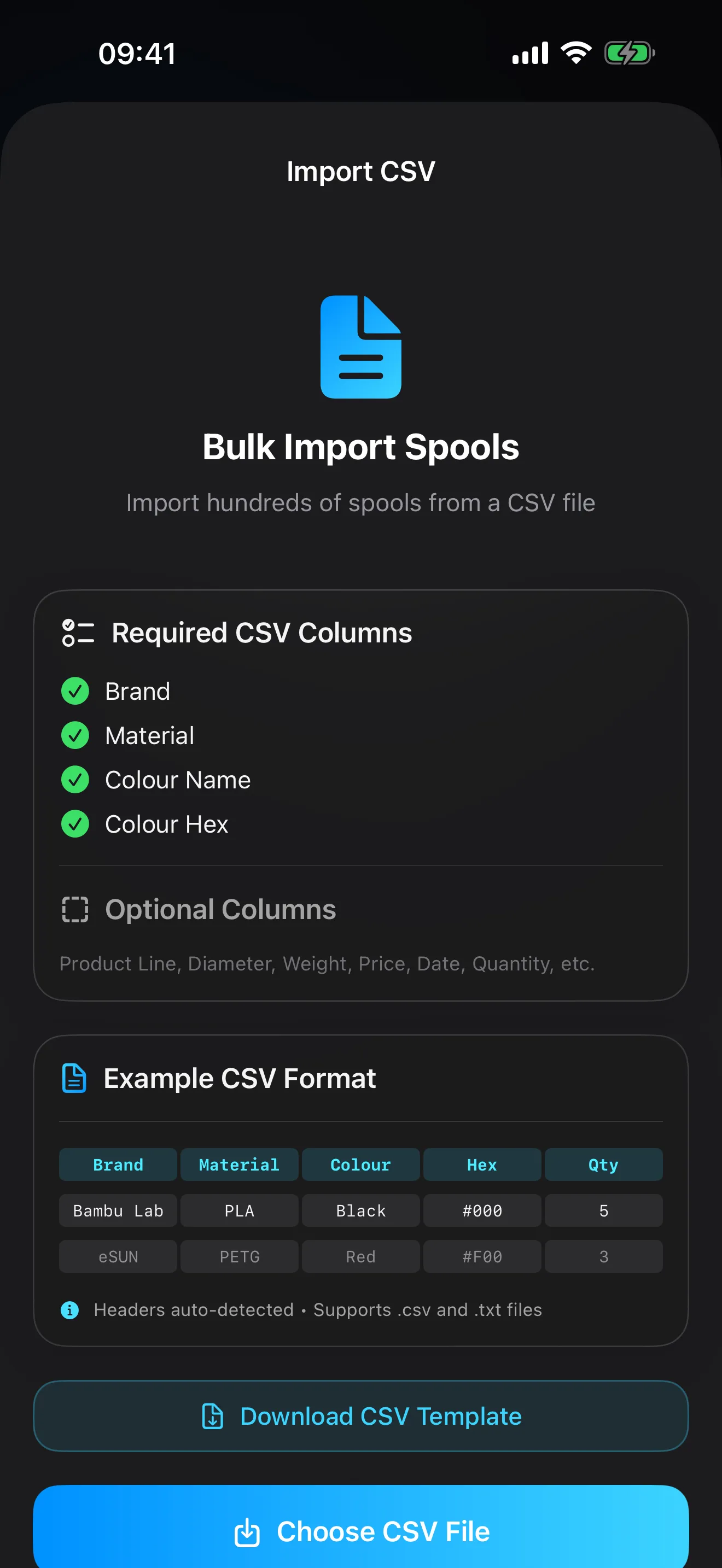
Export everything as JSON or a .spoolbackup file, restore it on a new device, and bring an inventory in from a spreadsheet.
Read more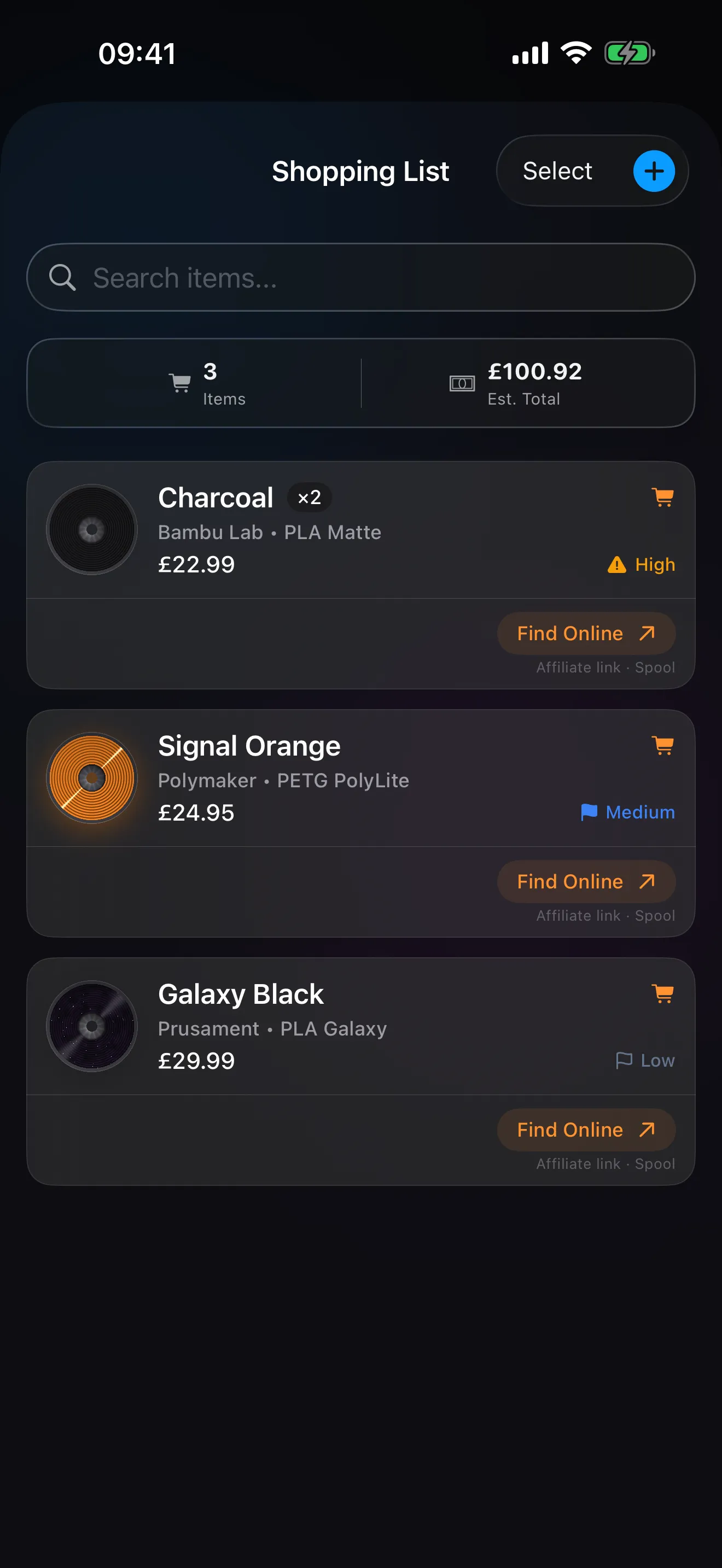
Plan the next order, with critically low spools suggested for restock and room for a purchase link on each item.
Read moreGetting prints into the log and learning from them.
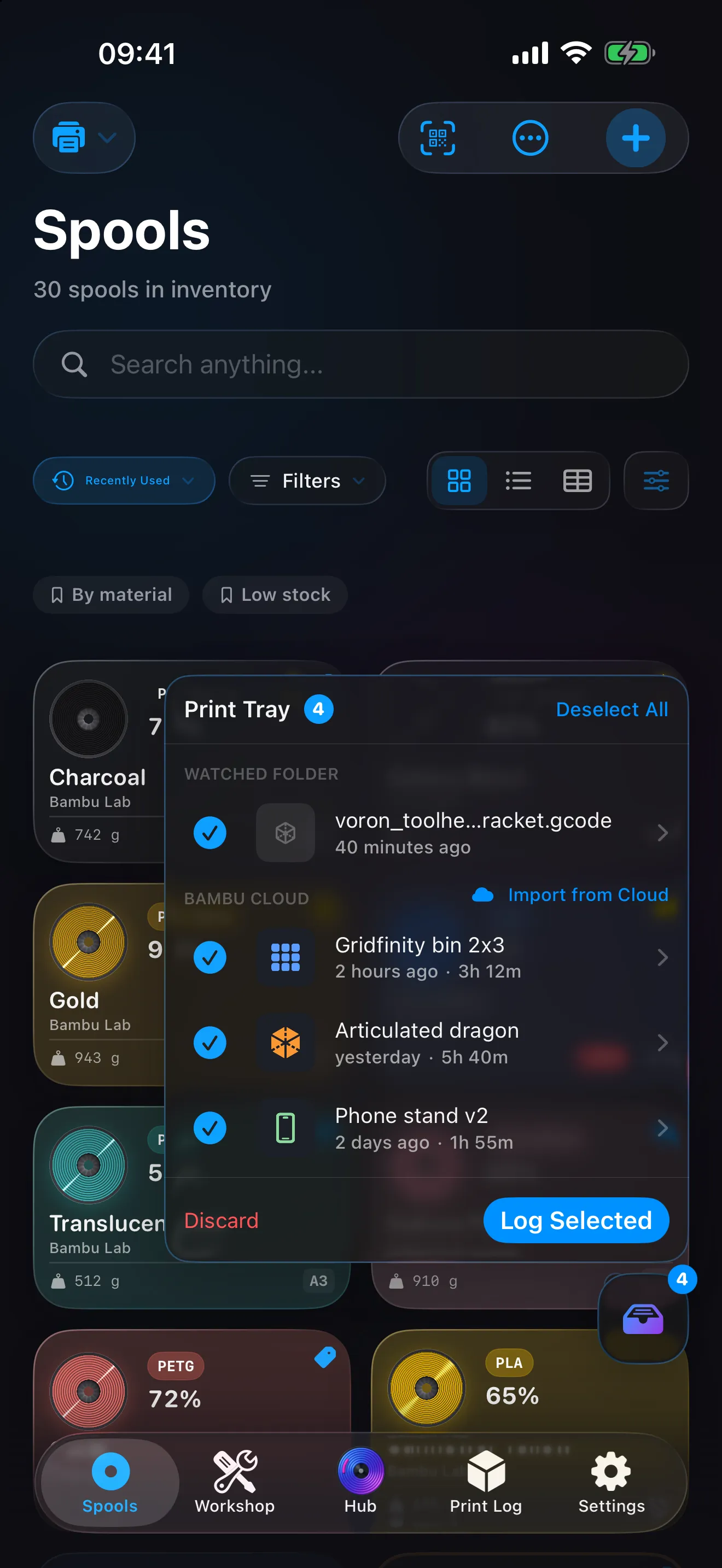
Finished Bambu Cloud prints and freshly sliced files wait in a tray; tap to log them, with a spool already suggested.
Read more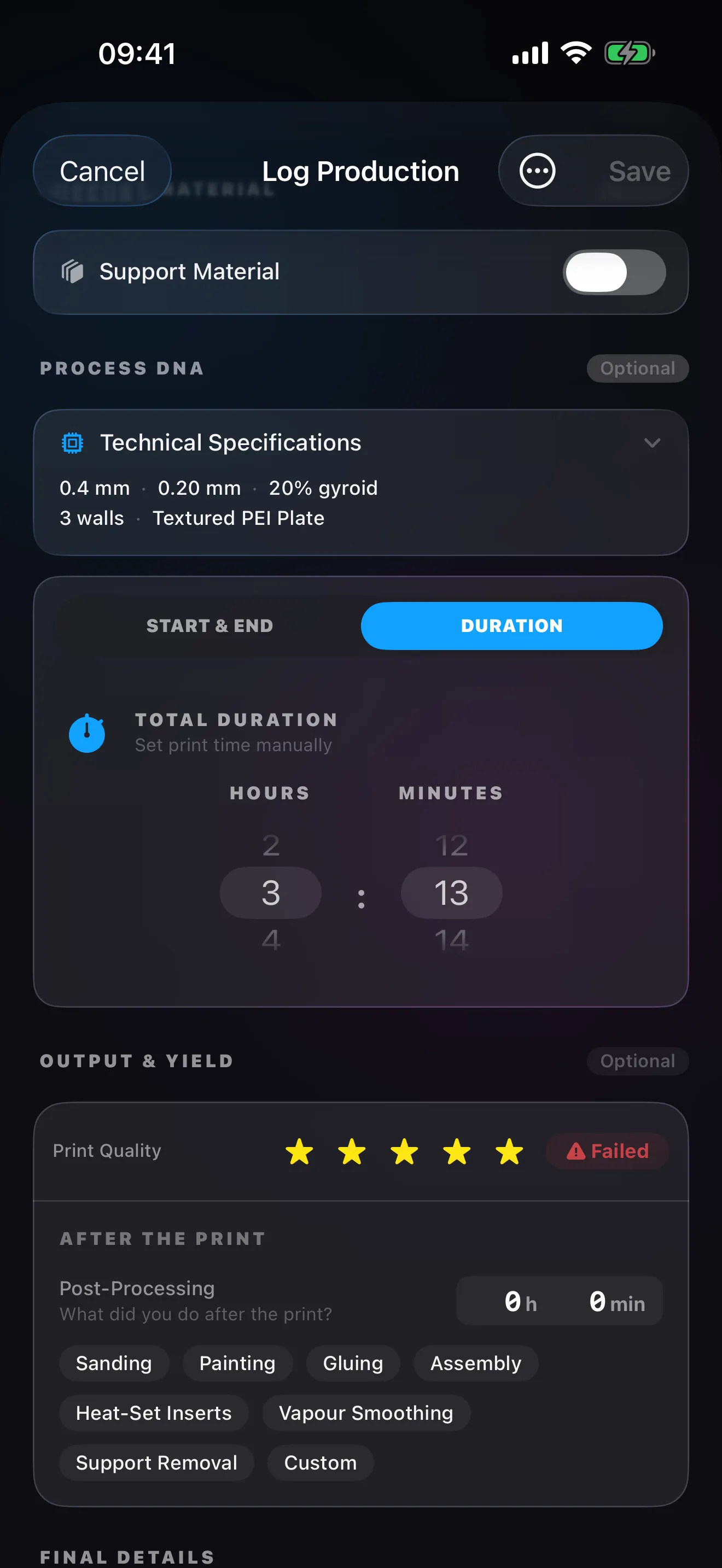
Share a sliced file to Spool and the print arrives pre-filled: name, duration, filament weight, material, colour and printer. Not every slicer’s files can be read yet.
Read more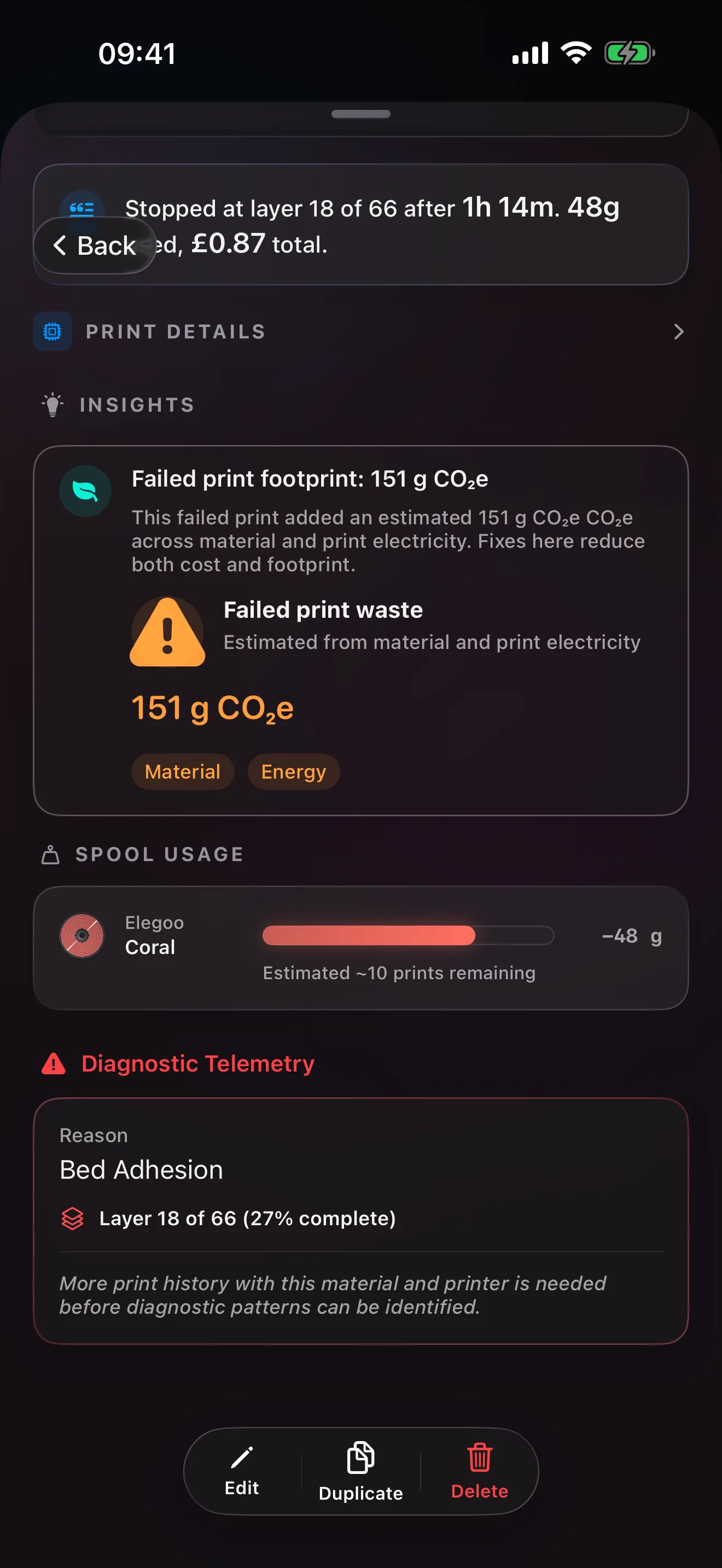
A failed print keeps the reason and the layer it stopped at, and Spool reads it against your history for a pattern.
Read more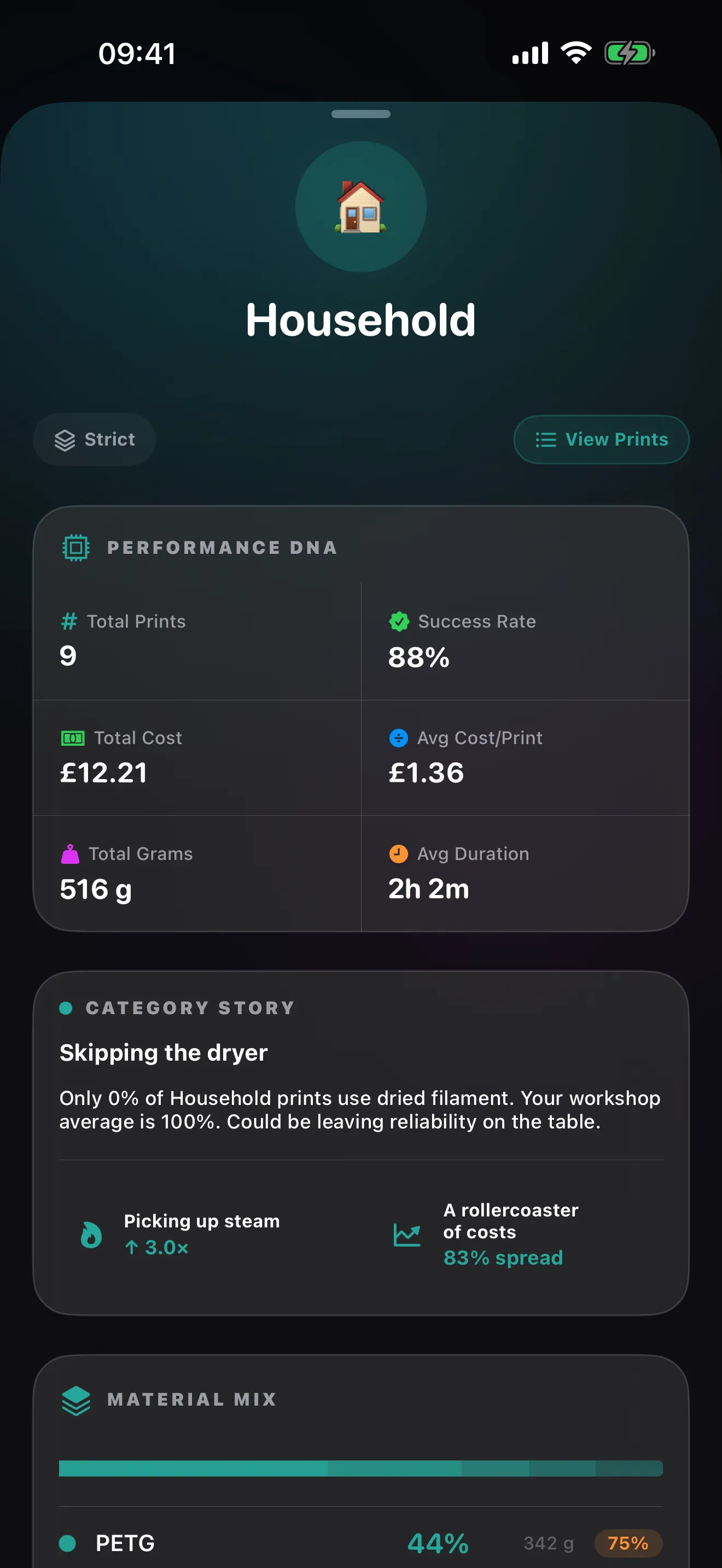
A print name gets a category suggested from a keyword library that learns from your choices; Pro adds per-category success, cost and duration.
Read more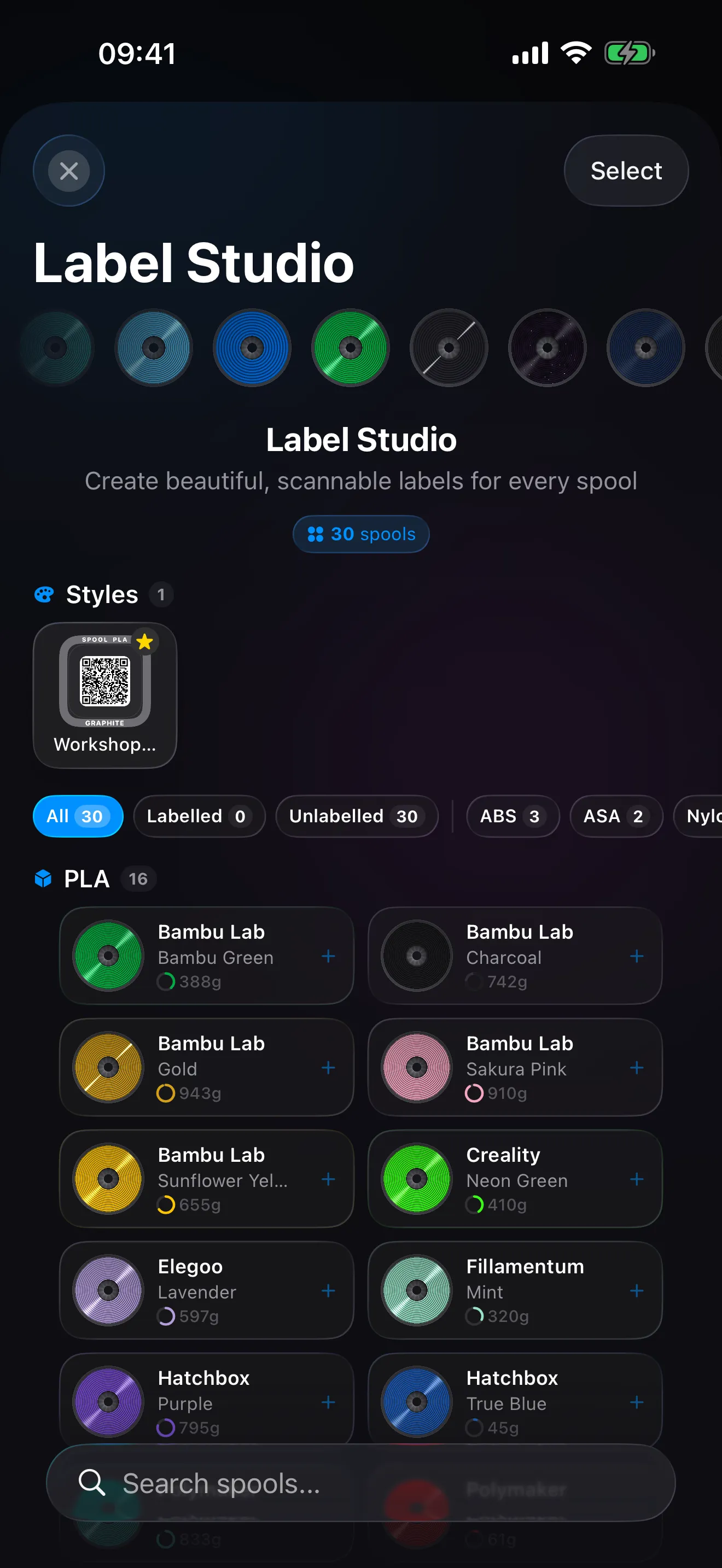
Design a label once, queue several spools, and lay them out for thermal rolls, sticker sheets or A4 grids.
Read moreThe numbers behind the shelf: cost, energy, material and hardware.
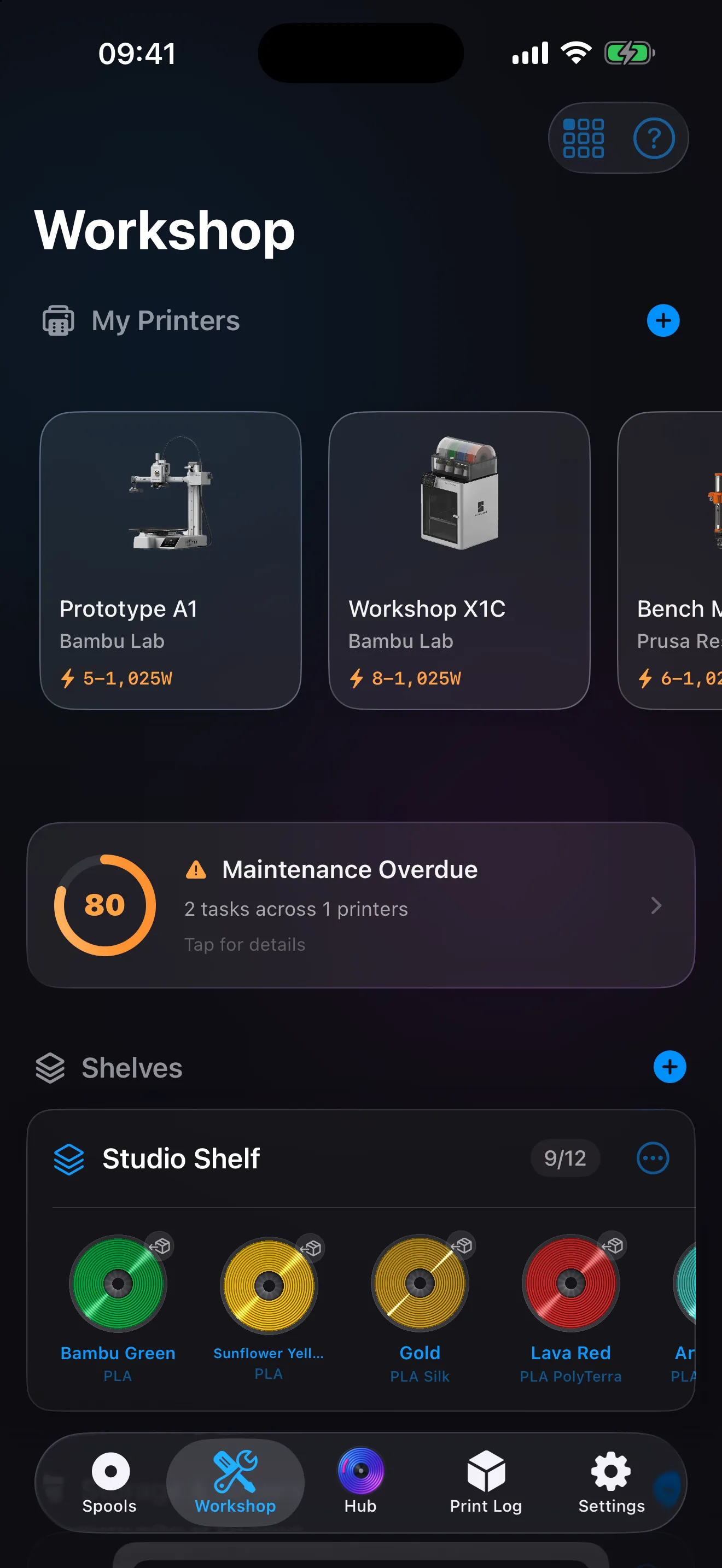
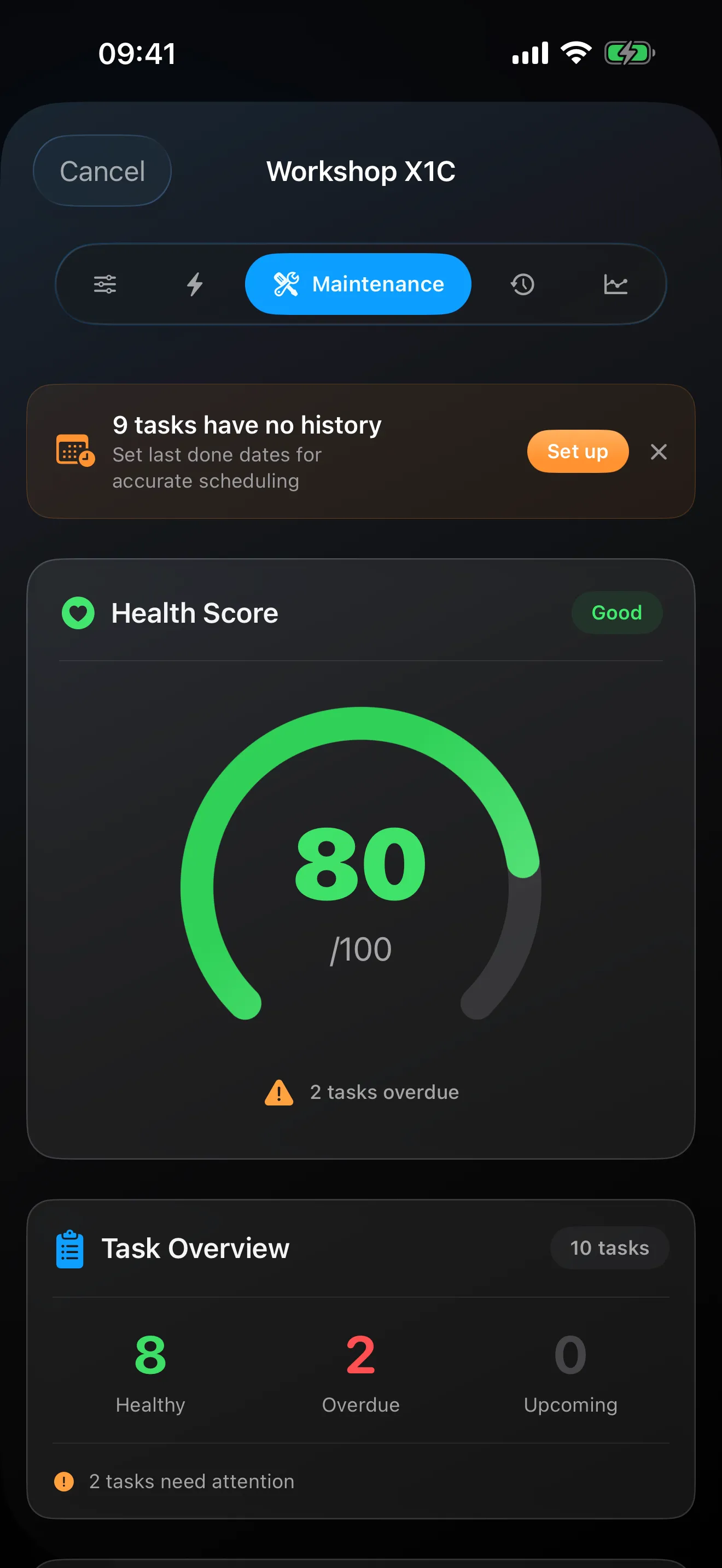
Dryers, AMS units and printers, and keeping them in good shape.
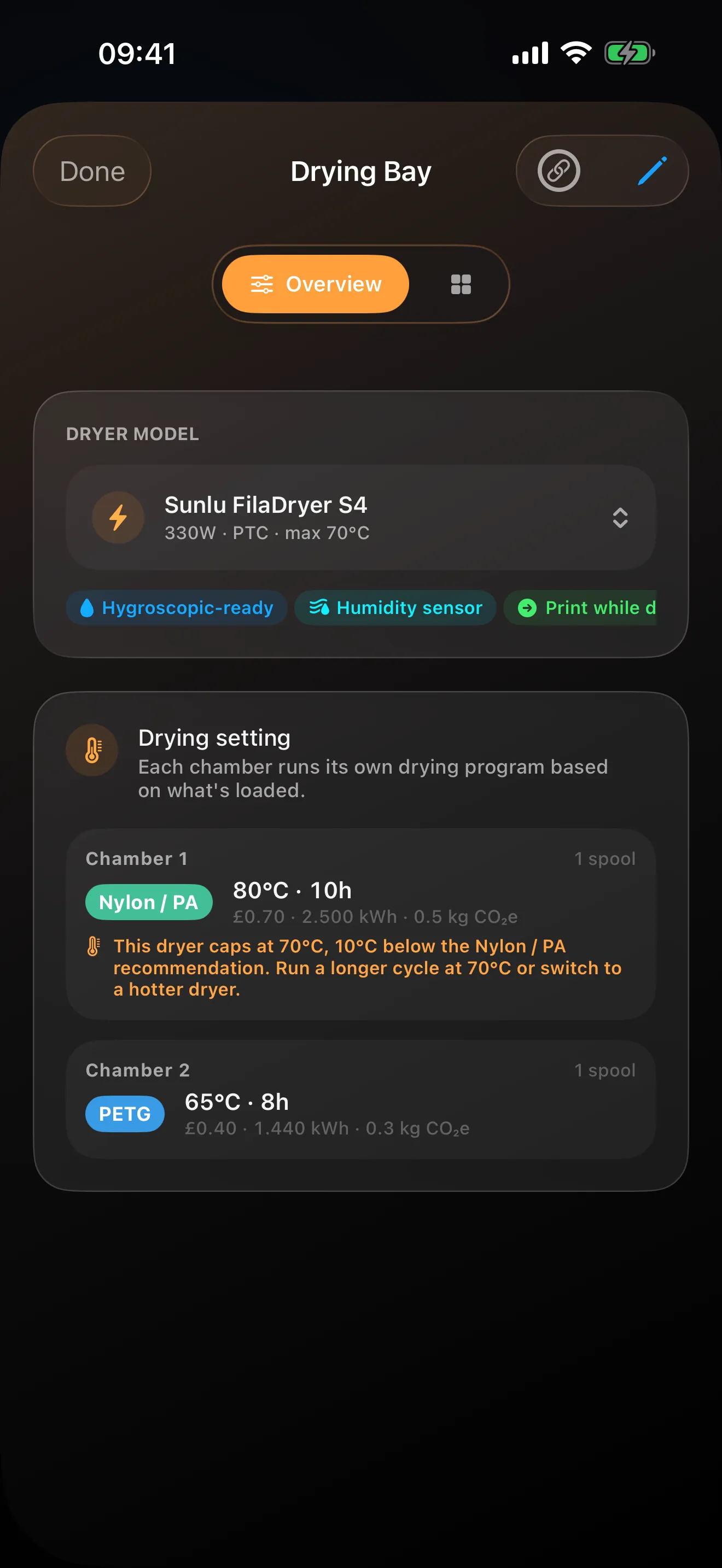
Start a drying cycle from the material’s preset, per chamber on multi-chamber dryers, and log humidity readings by hand for dryers with a sensor and sealed AMS units.
Read moreTasks from the manufacturer’s guide for popular printers or a standard set, a health score per printer and, with Pro, reminders when something is due.
Read morePhysical tags and labels that open the right spool.
The same data on a bigger screen, with a few things only a Mac can do.
Where your data lives and how it travels.
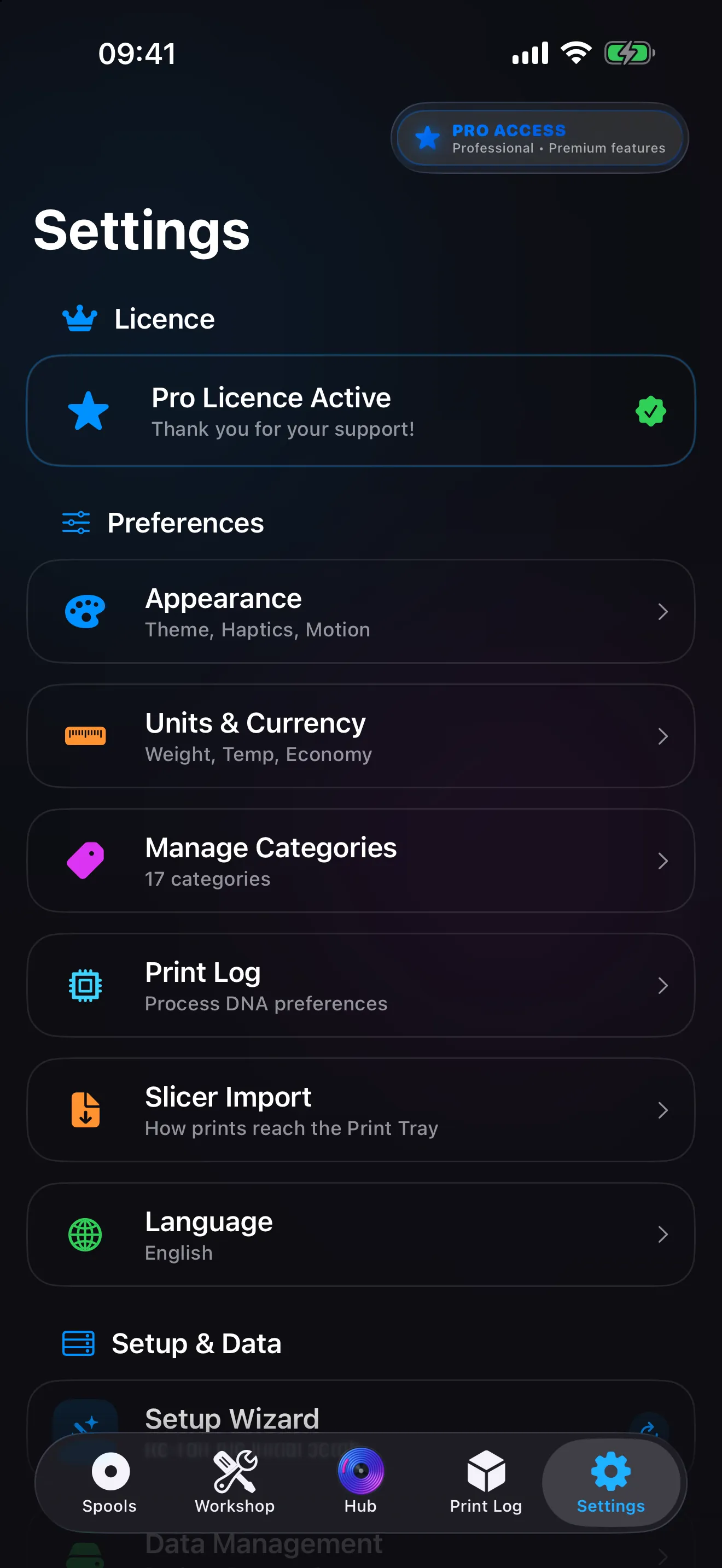
No account to create: your data lives in your iCloud and follows you to every device on that account, and the sync row says plainly when something needs attention.
Read more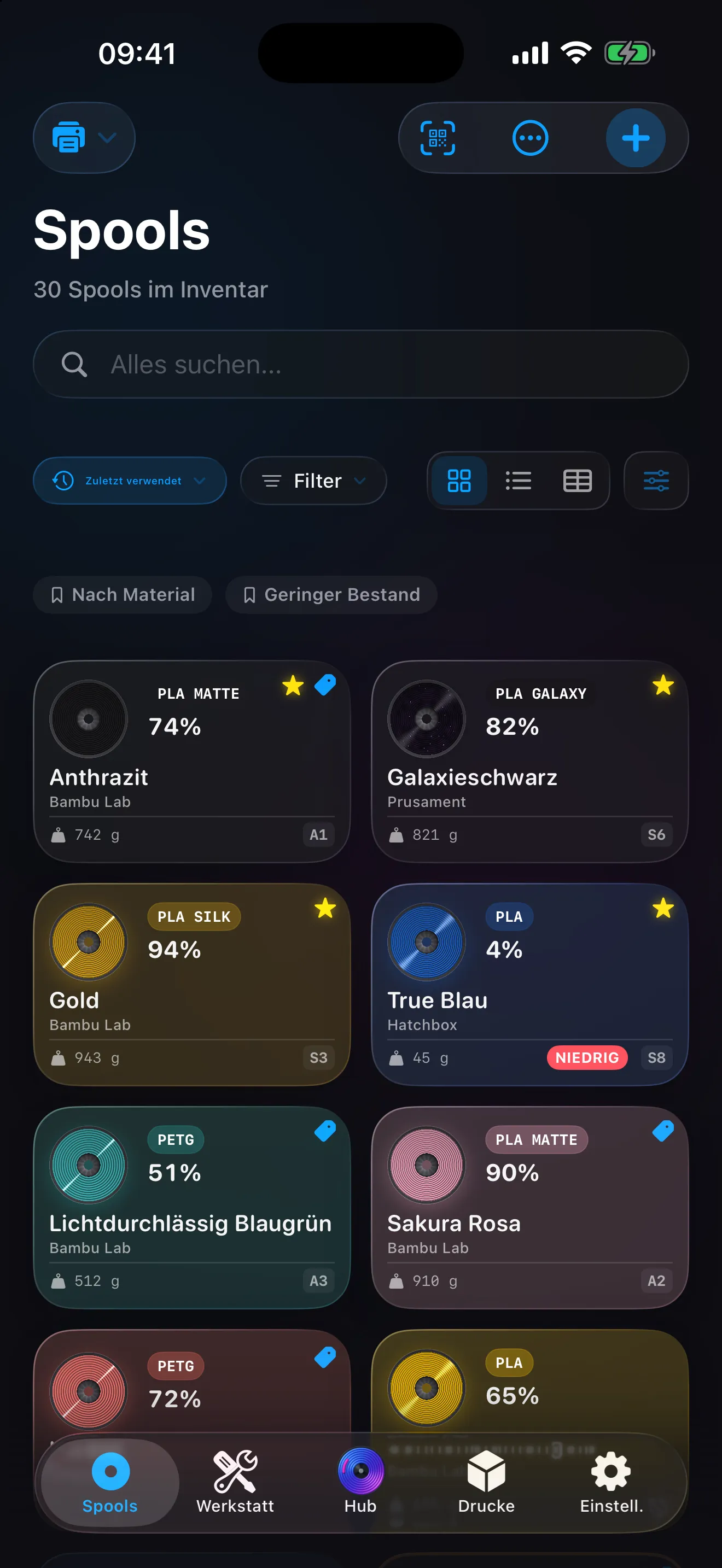
English, German, Spanish, French, Italian, Polish, Brazilian Portuguese, Simplified Chinese and Traditional Chinese, following your device or chosen in Settings.
Read moreFrom the App Store
I'm not sure how I managed to keep track of everything before. The connection with the Bambu Cloud makes it super easy to import my prints and accurately track how much filament I have left. The whole analytics with proper energy tracking is amazing too!
The app is simply amazing. I was thinking of building something like that on my own, but then I found this existing app and I'm really happy with all of the functionalities and features provided.
Such a well-designed, pretty, and versatile app.
Pricing
No card to start, no trial that expires. Pro is a monthly or yearly subscription priced in the App Store, and a one-time Spool Pack adds 10 slots if you only need a few more.
Free
Free no card needed
Pro
Unlimited monthly or yearly, in the App Store
Questions
The same answers you will find inside the app's help pages.
There are four ways to add a spool:
1. Manual - tap + on the Spools tab and search by brand to pre-fill specs.
2. Smart Import - tap Scan Label to point your camera at a filament label (on Mac, Continuity Camera can use your iPhone as the lens), or choose Photos on iPhone to import screenshots of orders. Spool reads the text, matches it against the built-in filament database, and pre-fills everything.
3. NFC Tag - scan a filament tag Spool can read with your iPhone; some filament brands ship one on the spool. Brand, material, colour, weight, and temperatures fill in straight from the tag.
4. Product link - paste a product URL into the search field on Add Spool and Spool reads the page for details when you submit it.
Enter the current remaining filament weight, not the total spool-on-scale weight. For a new 1 kg spool, enter 1000 g. If you only know the total weight from a scale, use the scale calculator next to Remaining and Spool will subtract the empty spool tare for you.
Not necessarily. If you have a Bambu printer, connect your account and finished prints are fetched automatically and wait in the Print Tray for a one-tap log. Otherwise, share the sliced file with Spool and the print details are read from the file. Not every slicer's files can be read yet.
Yes, completely free. Connect your account and finished prints are fetched for you, ready to log. No Pro subscription required.
Two steps: First, go to Settings → Units & Currency and enter your electricity rate (e.g. £0.34/kWh). Second, go to Workshop, tap your printer, and ensure the model is correct. Spool needs both to calculate energy usage. If your tariff changes price by time of day, switch Energy Pricing to Time of Use and build a schedule so each print is costed against the right rate window.
A SpoolTag links your physical spool to the app. Stick an NFC tag or QR label on the spool, then scan it to open that exact record. No searching, no scrolling.
The Hub is your command centre. On iPhone, tap the centre tab from any screen and a glass overlay appears with every major action in Spool, without navigating away from what you're doing. On Mac, press ⌘K (or click Hub in the sidebar) to open it as a command palette. It's the fastest way to get anywhere in the app.
20 spools, 2 printers, 4 storage locations, 30 days of history, and full Bambu Cloud sync.
1. Unlimited spools, printers, and storage (Free caps at 20/2/4).
2. Lifetime analytics (Free caps at 30 days).
3. SpoolTag Label Studio - design, save, and print custom labels, with saved styles, Thermal Roll and Sticker Sheet layouts, and vector PDF export.
4. Batch Print Queue - select multiple spools and print all their labels at once.
5. Category Customisation - custom emoji, colour swatches, auto-tagging keywords, pinning, and manual reordering.
6. Category Insights - per-category analytics with Performance DNA, trends, and cross-category comparisons.
7. Printer Performance - a printer's speed envelope, build-plate performance, failure-location patterns, and slicer-profile reliability on its Overview tab.
8. Maintenance Reminders - push notifications when printer tasks are due, quick-complete from the notification, and Live Activity tracking for overdue tasks on iPhone.
9. Custom Maintenance Tasks - create your own task schedules beyond the built-in templates.
10. Maintenance Celebrations - animated health-score celebrations when you restore your printer to peak condition.
11. Print Story Pro Insights - advanced calibration and efficiency intelligence: best-tested temperature and layer-height ranges, speed and volumetric history checks, observed drying comparisons, flow-rate drift detection, cost-per-good-gram and cost trend alerts, off-peak energy savings, cost of success across retries, a reprint dossier for designs you run again, a batching tip when short prints cluster, and greener spool suggestions from your inventory.
12. Purchase Value Total - the spreadsheet totals bar shows your inventory's total purchase value.
Go to Settings → Data Management → Export Data. You can export as JSON (human-readable) or as a .spoolbackup file. The export includes your spools, printers, storage locations, print logs, drying history, shopping list, categories, tags, and electricity rate history.
Yes. Spool for Mac is a real Mac app, not the iPad one in a window: sidebar and detail, a proper menu bar, and screens laid out for a Mac. It's on the Mac App Store, your data syncs through iCloud, and Pro covers all your devices.
On a Mac, yes. Open Spool's Settings on the Mac, choose Slicer Import, and use Choose Export Folder to point Spool at the folder your slicer exports to. Freshly sliced files then turn up in the Print Tray on their own, and they appear in the tray on your iPhone too. The folder can only be chosen on the Mac; the iPhone's Slicer Import pane shows whether a Mac is watching one, and on iPhone you send files through the share sheet or the file picker instead.
Free on the App Store. No account required.